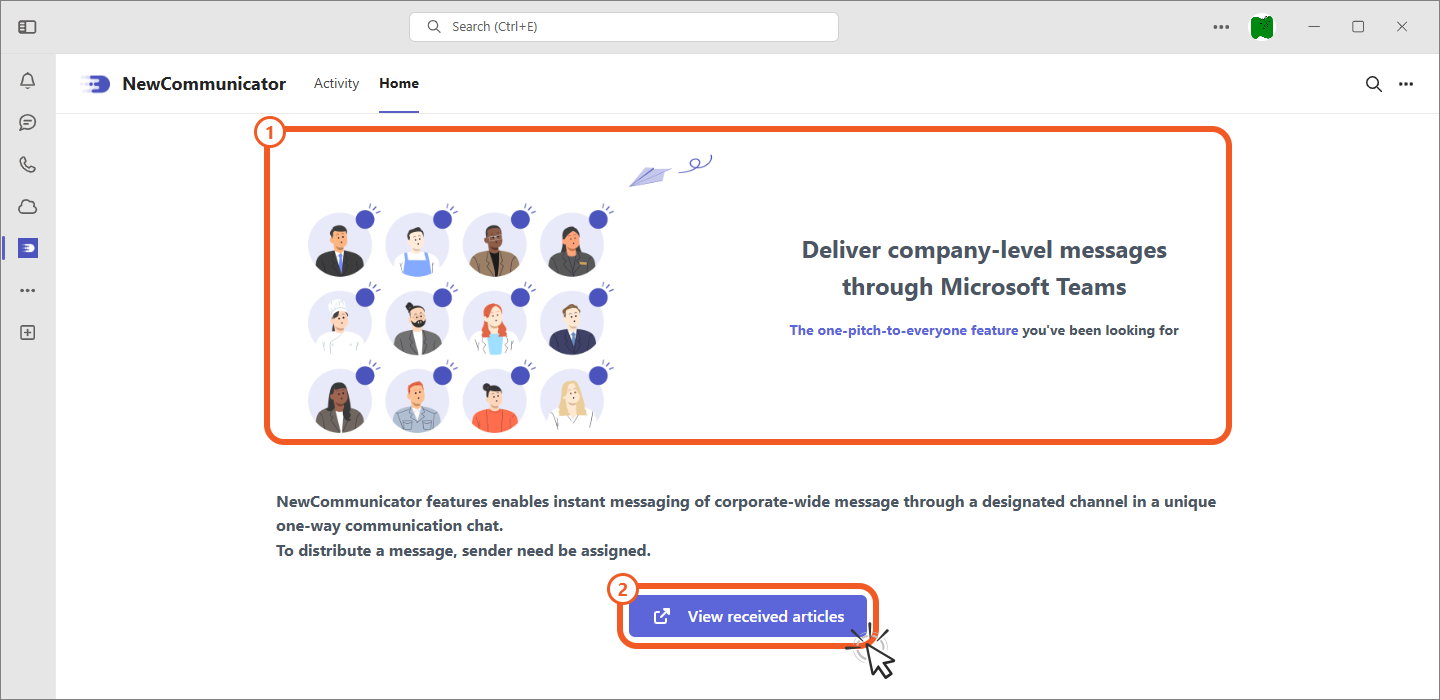
1.1 Add the App
Add the main app
Add the NewCommunicator main app from the Teams app menu.
- Open Apps at the bottom of the Teams left navigation.
- Search for
NewCommunicatorin the app store. If your organization customized the app name, search for the customized name. - Open NewCommunicator and select Add.
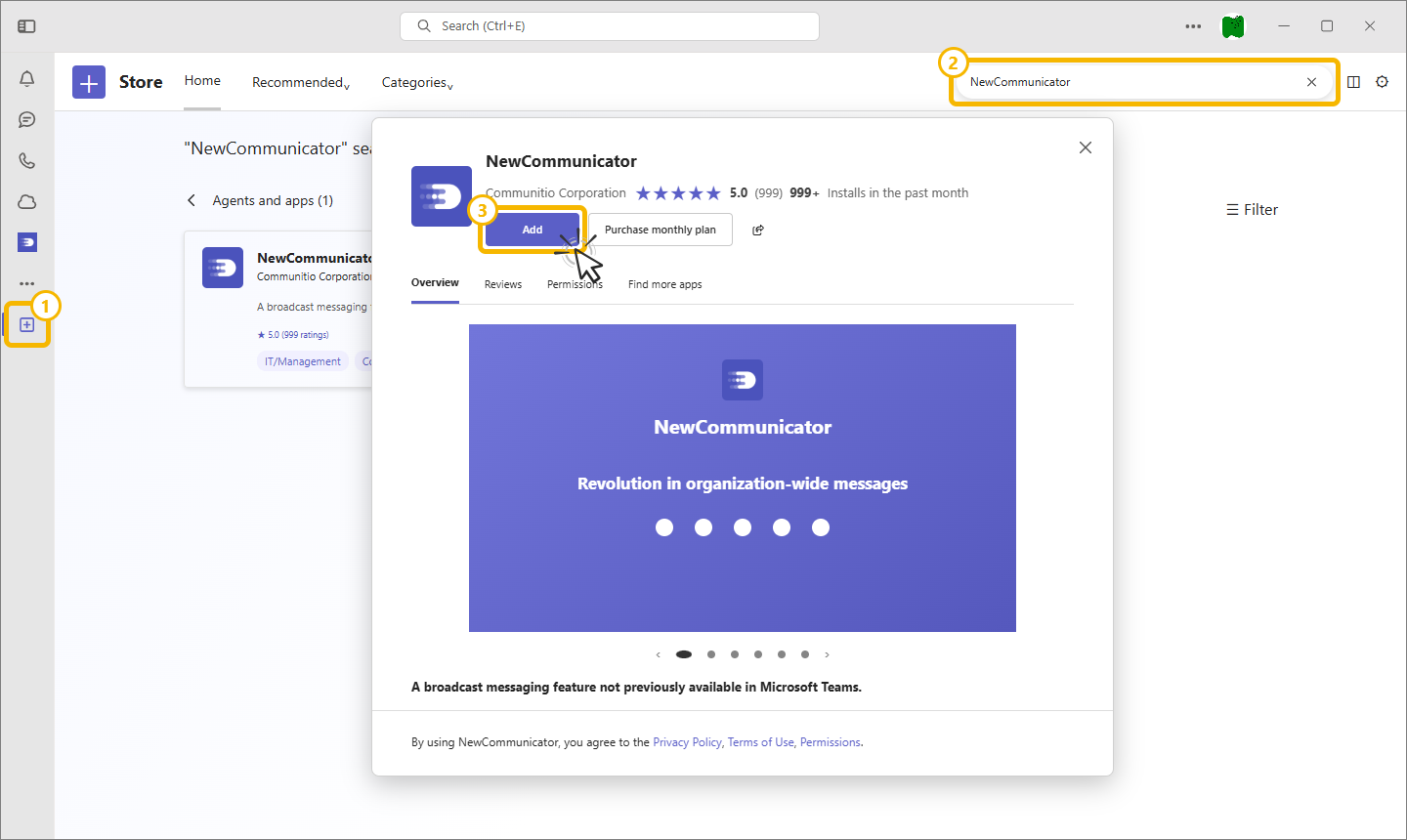
If your organization's settings do not allow third-party apps, contact your internal IT department.
On the Pro plan, all senders still create, edit, and send broadcasts from the NewCommunicator main app. The additional sender app is installed automatically on the first delivery, so no manual setup is required.
Sender home
After you add the app, NewCommunicator appears in the Teams left navigation.
Select Home in the top menu. The sender home is displayed only for users assigned as senders.
Pin the app
Follow these steps to open NewCommunicator and pin it to the side navigation.
- Select the NewCommunicator app icon in the left navigation.
- Right-click the app icon and select Pin.
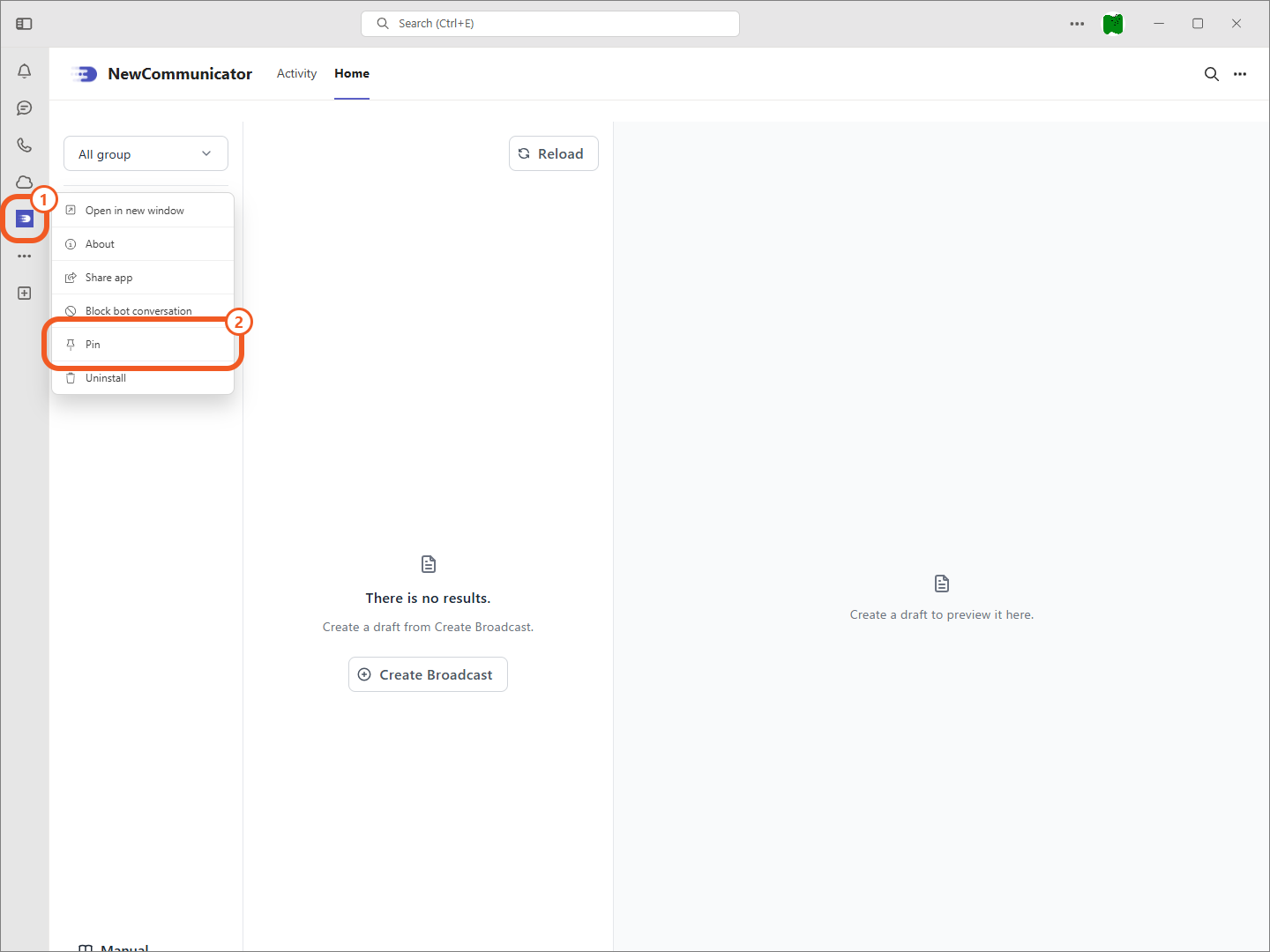
Pinning the app makes it easier for senders to access the broadcast screens.
Receiver home
The NewCommunicator app is added automatically when a receiver gets a broadcast for the first time. The receiver's main actions are as follows.
- Open the app home to display the NewCommunicator overview page.
- Select View received broadcasts to open the received broadcasts.
Receivers cannot open broadcast management screens or send broadcasts.