2.1 Create a Broadcast
Broadcasts are created, edited, and sent from the NewCommunicator main app.
On the Pro plan, broadcasts are created, edited, and sent from the NewCommunicator main app. When sending a broadcast, you select the Sender App you want to use, which determines the dedicated chat through which the broadcast is delivered to recipients.
Create a Broadcast
Select the broadcast template as follows.
- From Create a Broadcast, select either the Classic template or the visual template.
Classic template
The Classic template lets you create a broadcast by completing a simple form. You can enter the broadcast name, title, and text at the top.
Broadcast name, title, and text
Enter the following items.
- Broadcast name. This is for administration and is not displayed in the actual broadcast.
- Title.
- Body (top).
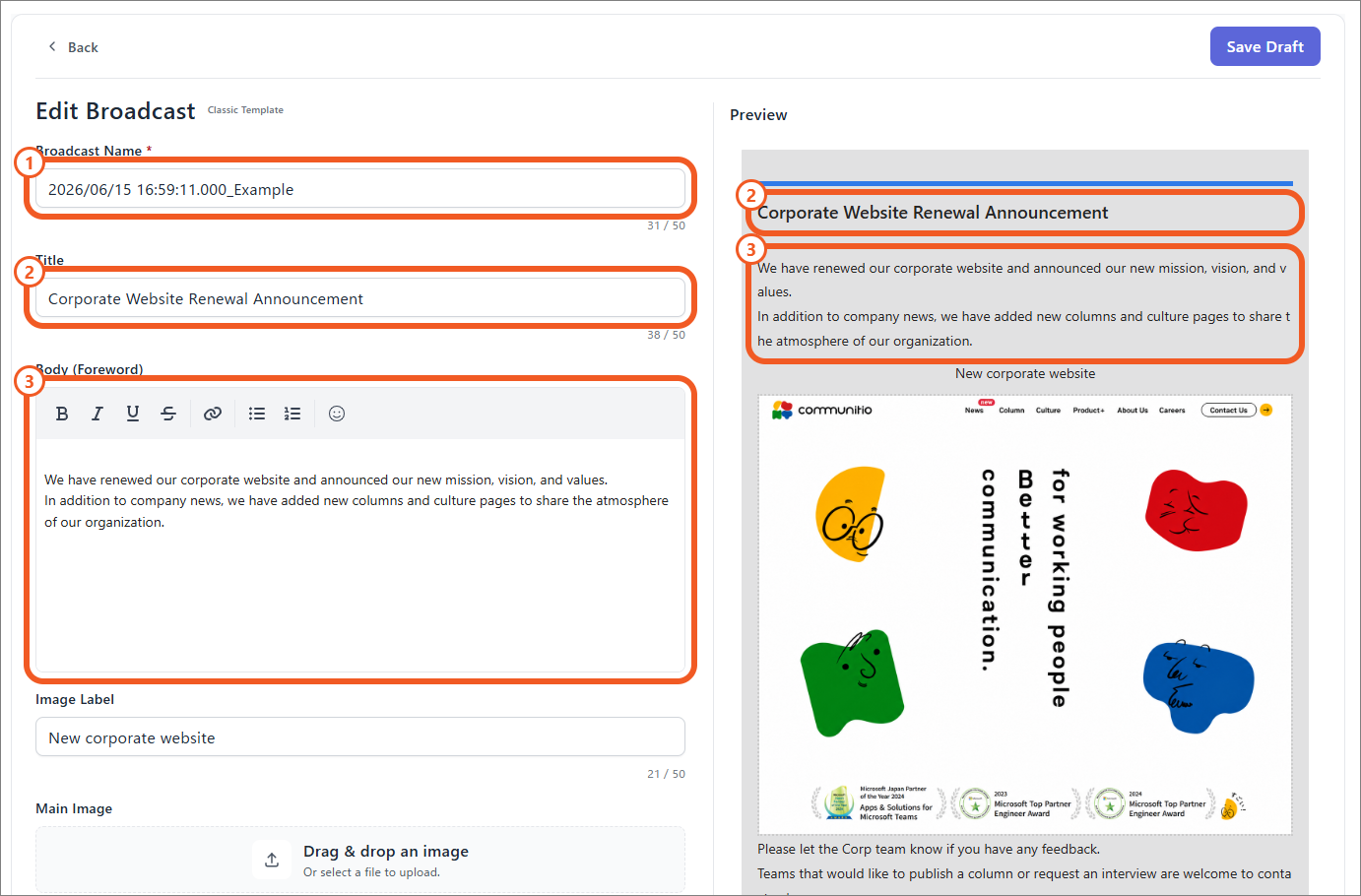
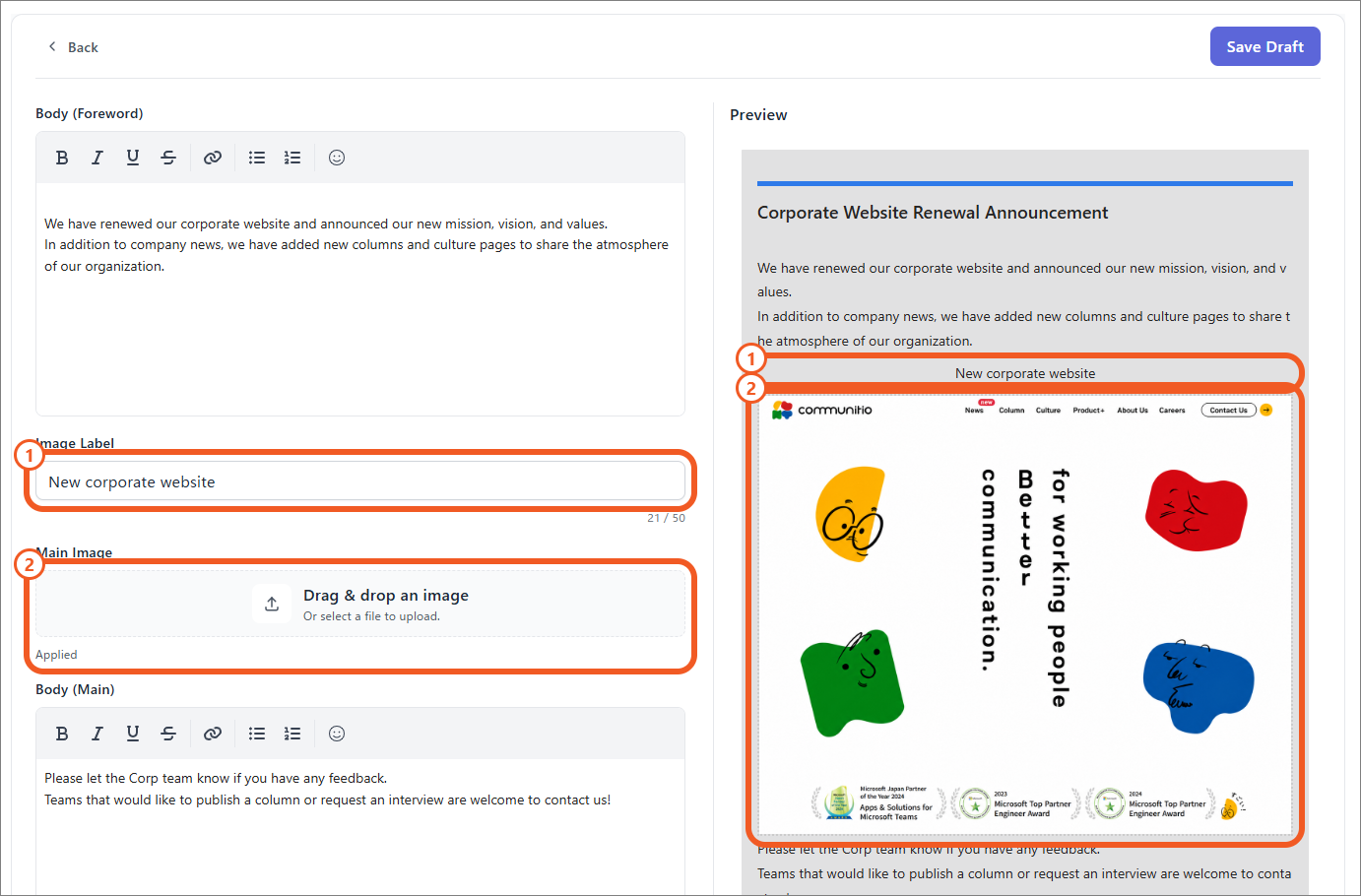
Image label and image data
Configure the following items.
- Image label.
- Main image.
You can upload image data using the following supported sizes.
| Format | Resolution | Size |
|---|---|---|
| PNG | 1000 px × 1000 px | 2 MB (800 KB after optimization) |
| JPG | 1000 px × 1000 px | 2 MB (800 KB after optimization) |
| GIF | 1000 px × 1000 px | 2 MB (800 KB after optimization) |
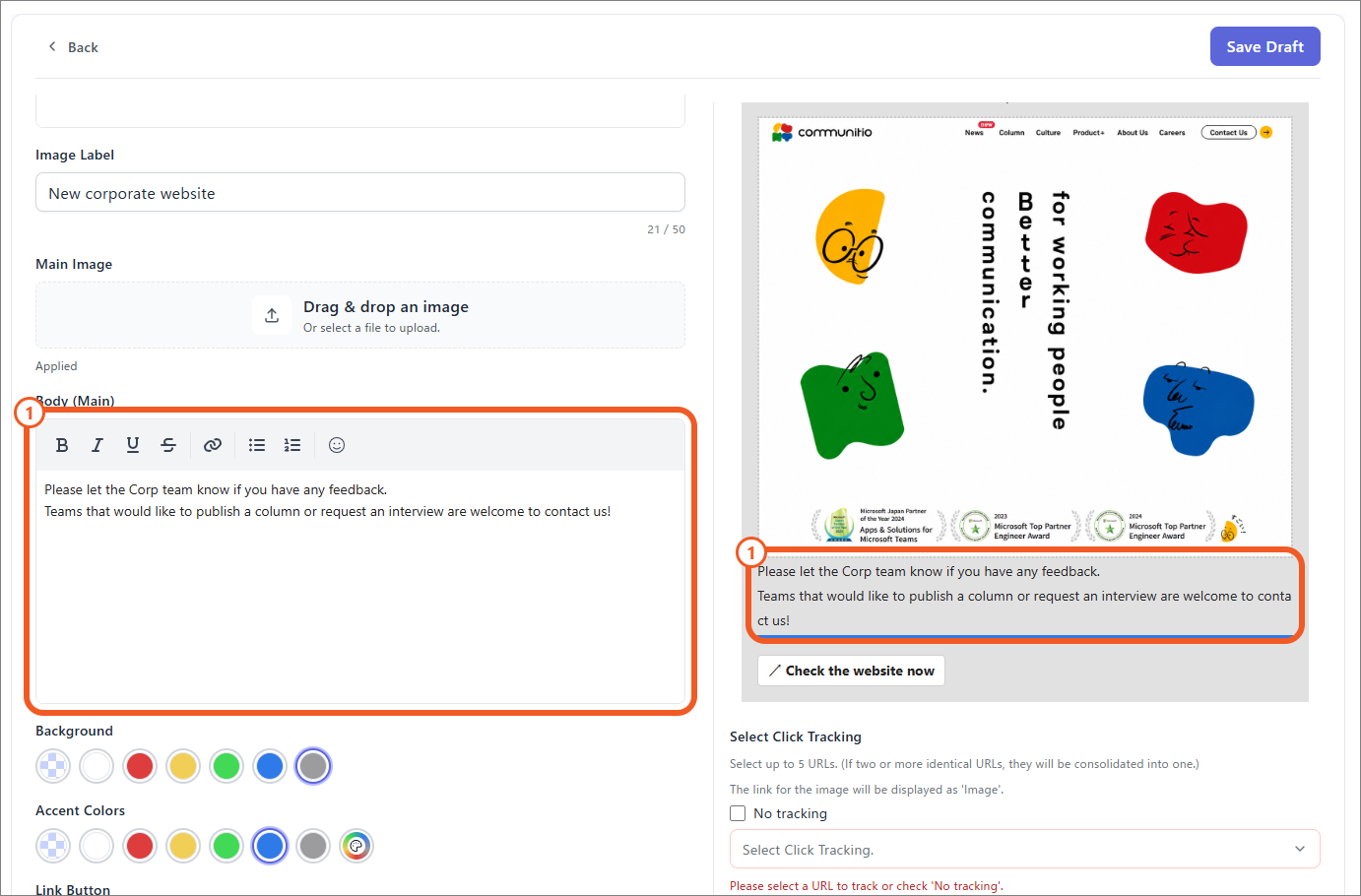
Text formatting
- Use the lower body text box to set bold, italic, underline, strikethrough, hyperlinks, and bulleted lists.
Visual template
The visual template combines text and images in one freely arranged composition. You can place videos and multiple images and decorate text.
- Configure text formatting and variable insertion from the toolbar.
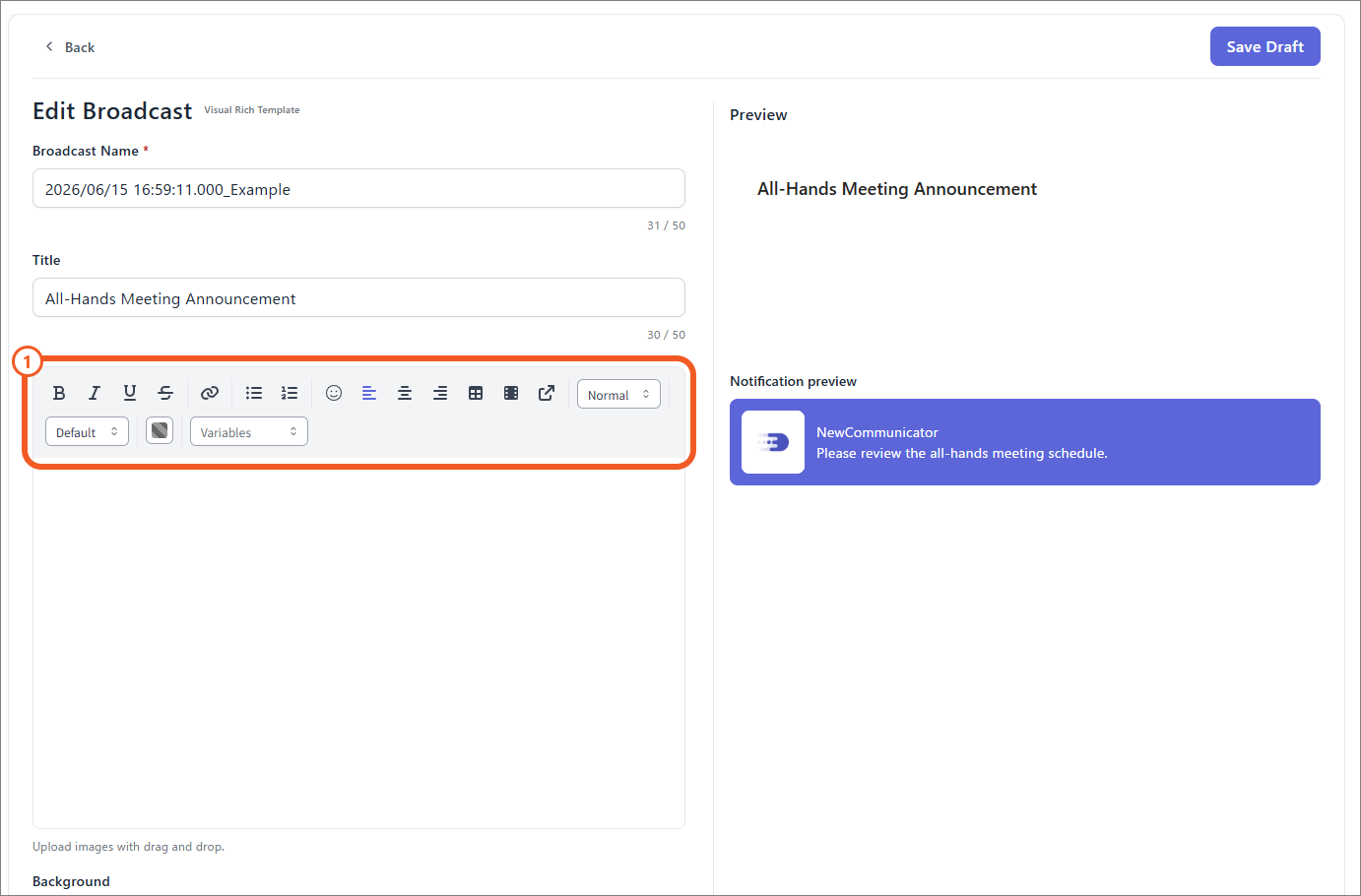
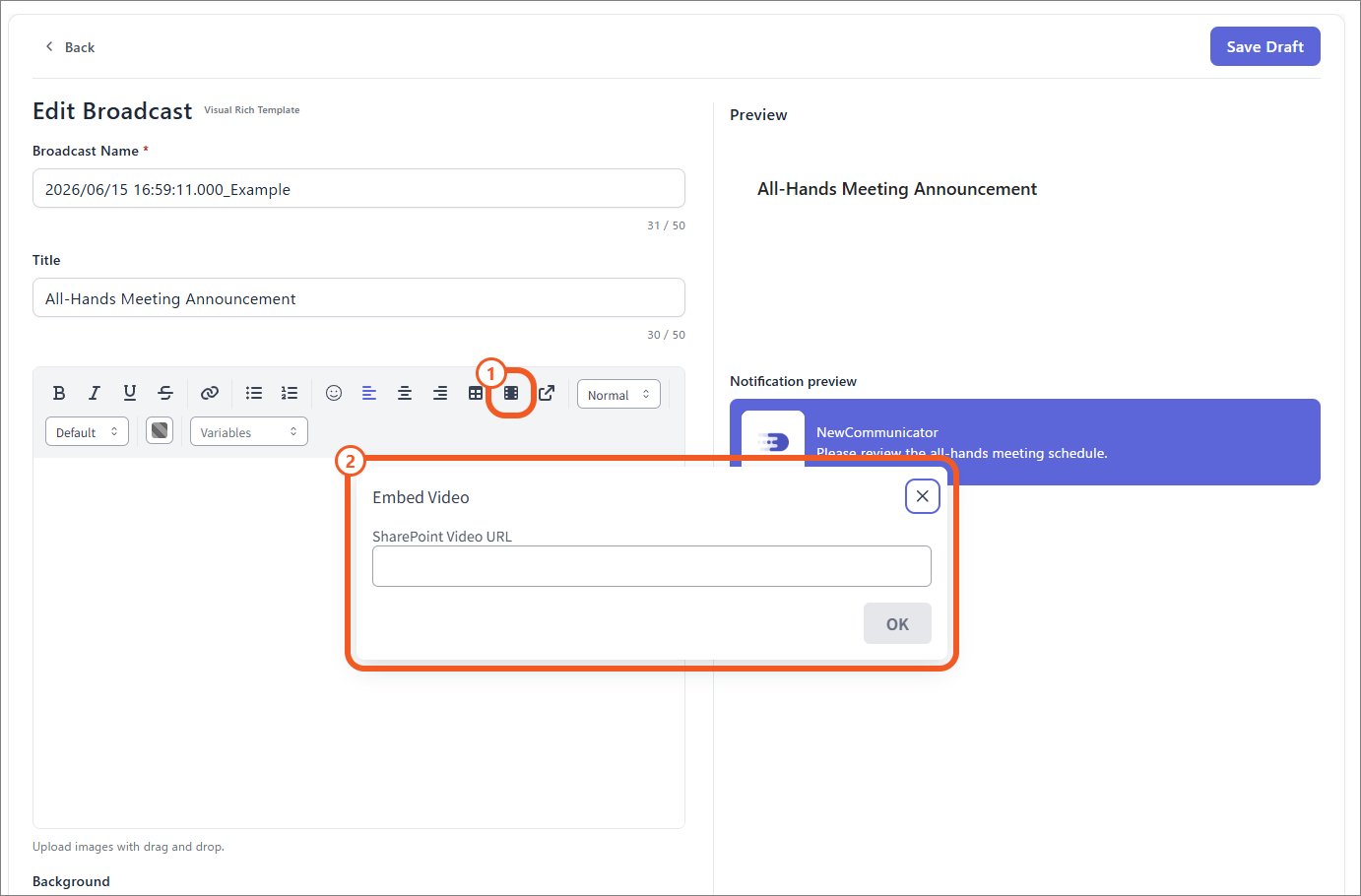
To embed a video, configure it as follows.
- Select Insert Video.
- Enter the SharePoint video URL.
Available formatting and components
- Text formatting: bold, italic, underline, and strikethrough
- Text sizes: small (12 px), medium (14 px), large (22 px), and extraLarge (26 px)
- Headings
- Text colors: black, blue, green, and red
- Left, center, and right alignment for text and images
- Bulleted and numbered lists
- Emoji
- Tables and inline images
- Embedded SharePoint videos
- Inline links and link buttons
Enter a SharePoint video URL to embed a video in the broadcast. Videos cannot be played in the editor or preview, so verify them with a test delivery.
Common settings
The following settings are shared by the Classic and visual templates.
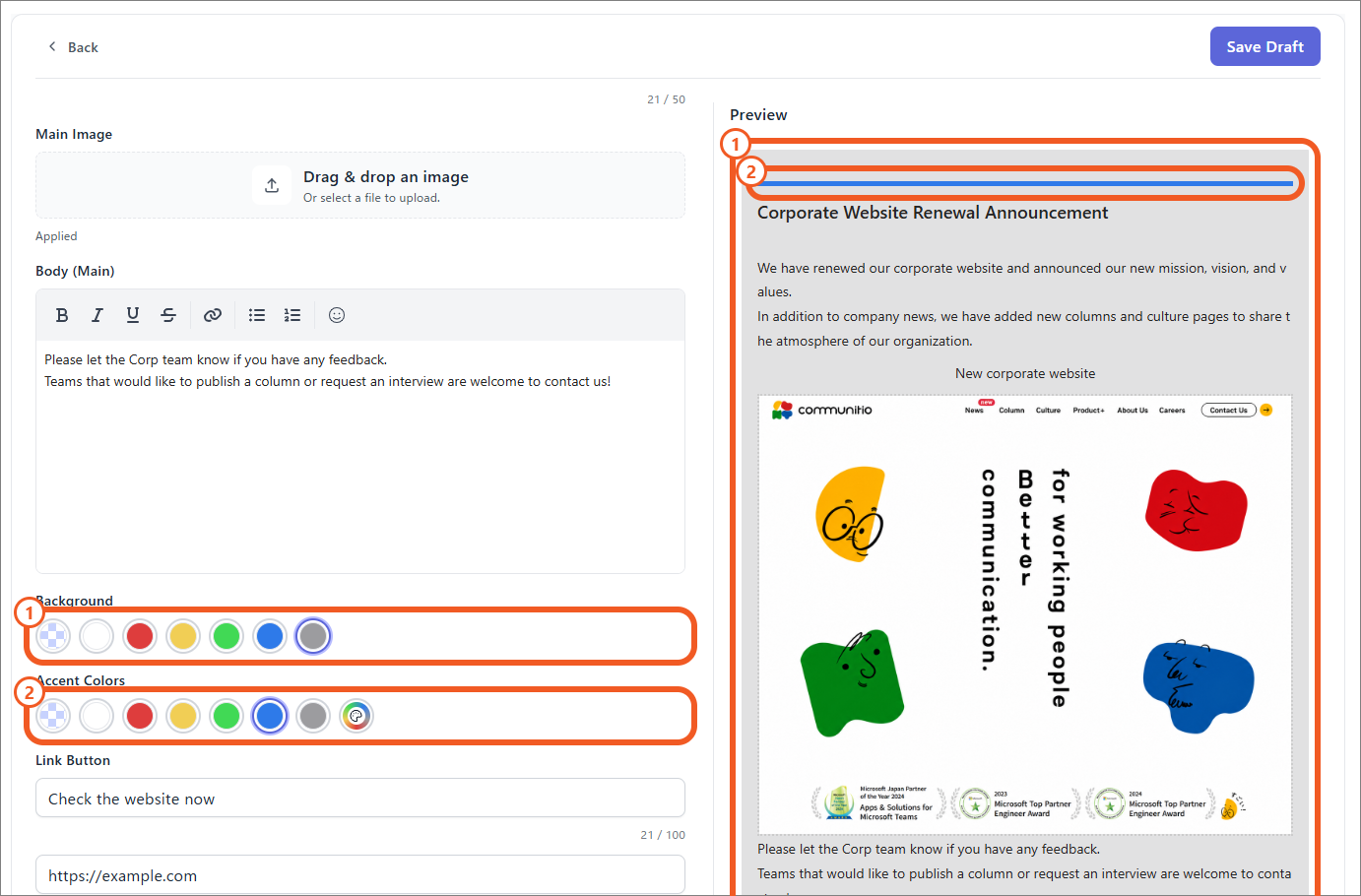
Background and accent colors
Configure the following items.
- Background color.
- Accent color.
Button links and link tracking
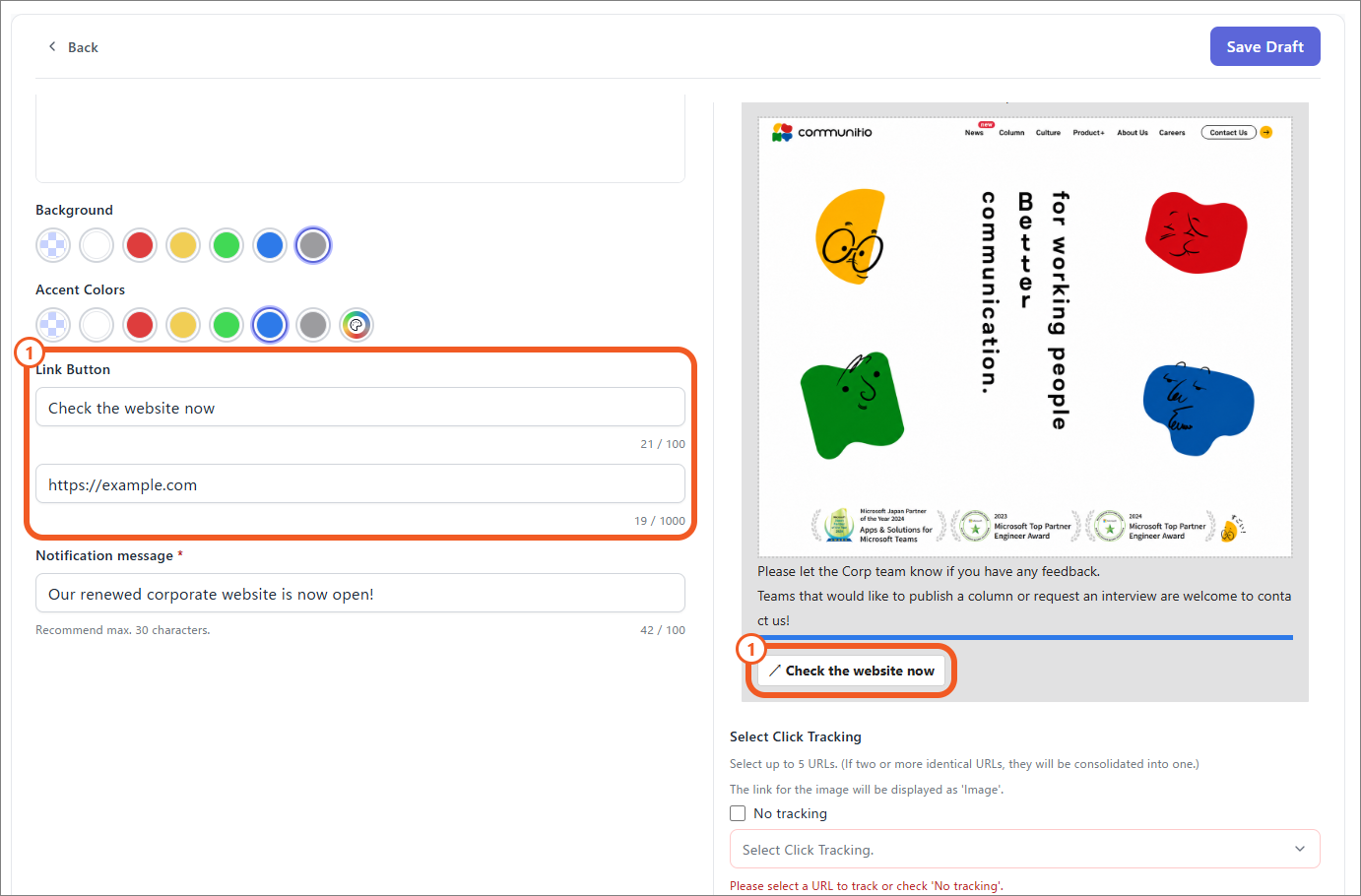
- Set the button link display text and URL.
Together with hyperlinks in the body, up to five links can be selected for link tracking.
Select Do not track if you do not want tracking. The selection screen is not shown when the body does not contain a link. Link tracking measures clicks on the selected links, and the click rate is available on the delivery result details screen.
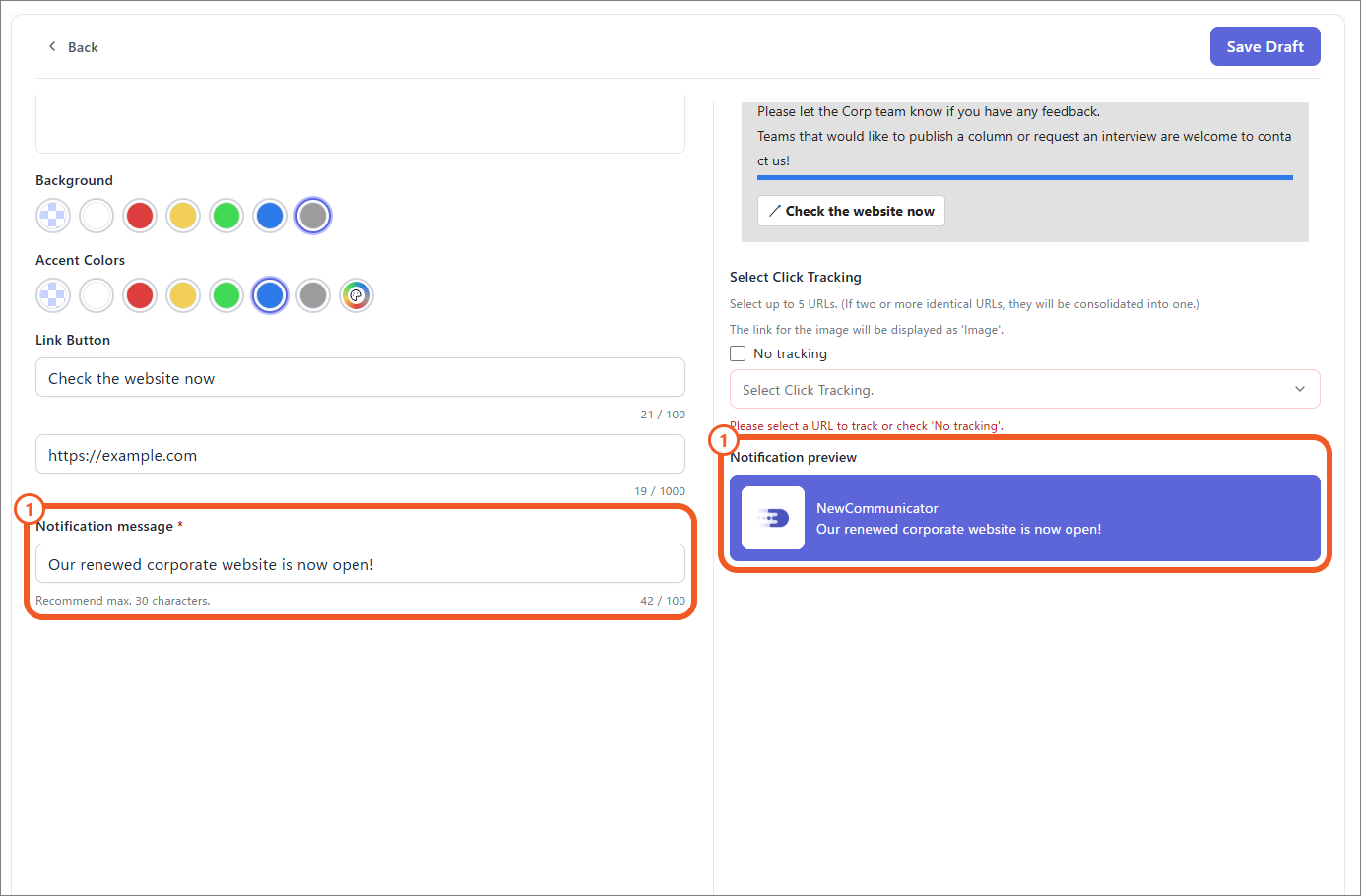
Notification content
- Set the notification content shown in the pop-up at the bottom right of the receiver's screen when the broadcast is received.