3.1 Send a Broadcast
Send a test broadcast
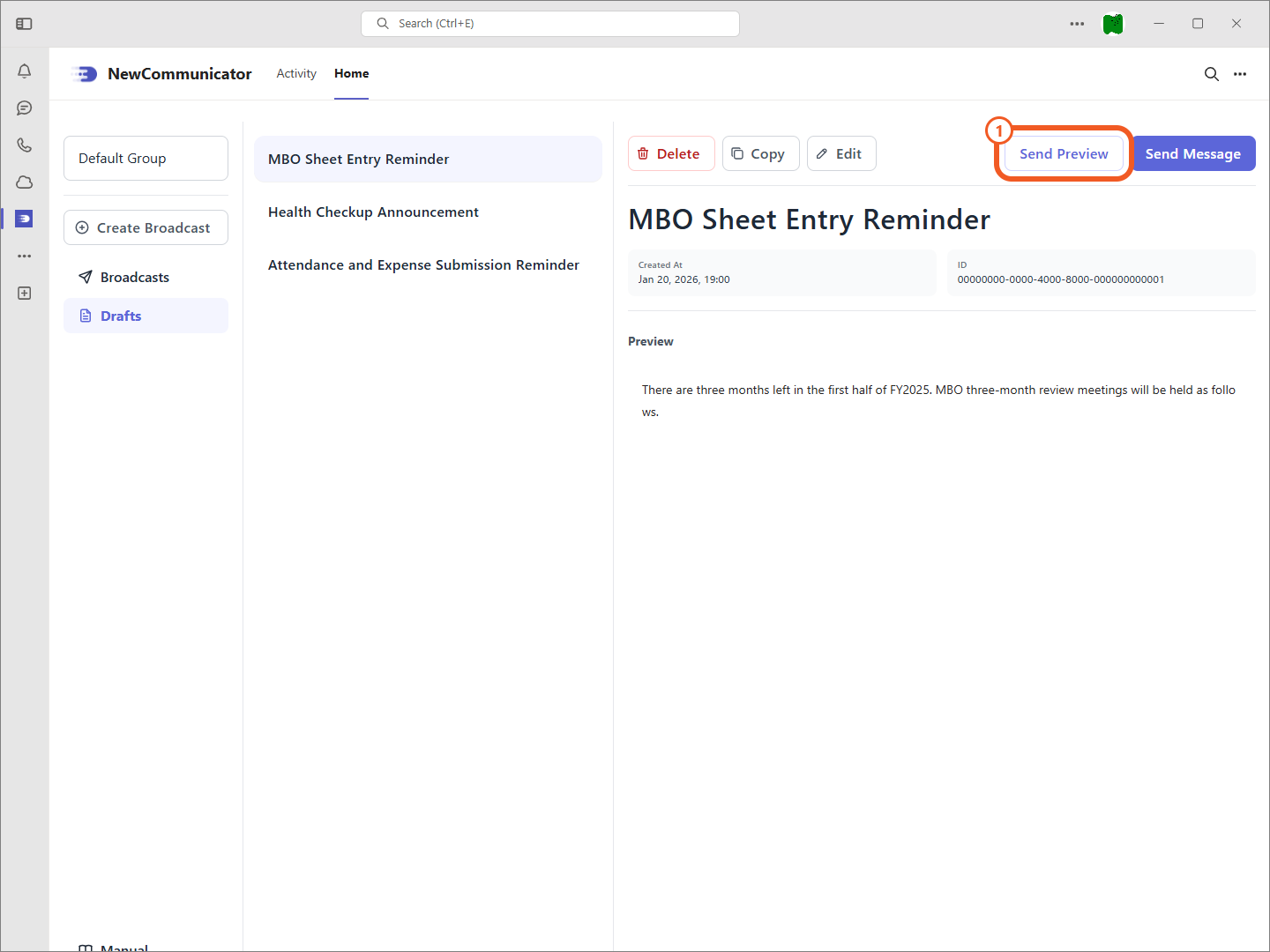
All created broadcasts are saved in the drafts folder.
- Select a broadcast in the draft list and select Send Preview.
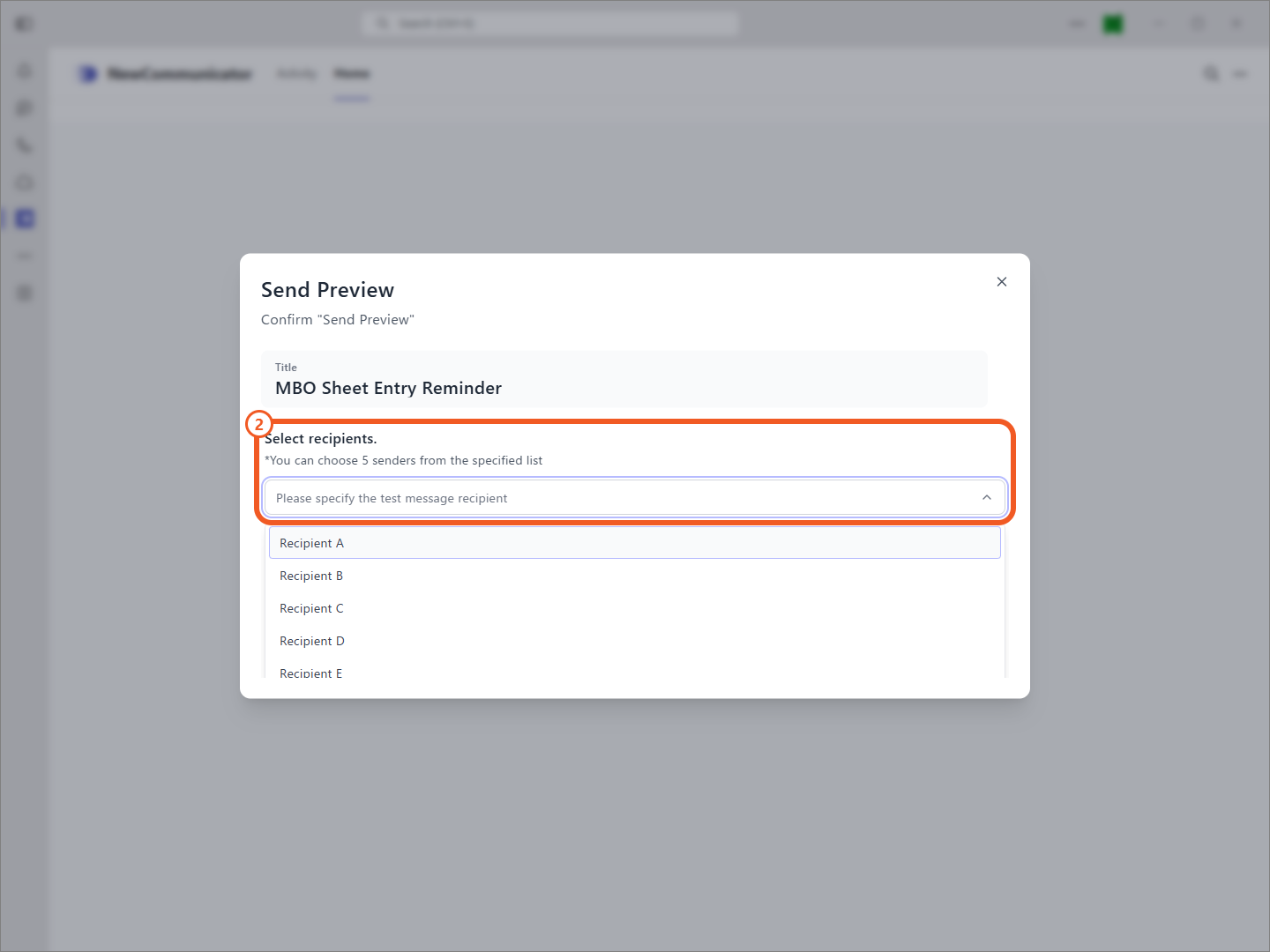
- Select up to five test recipients from users assigned as senders.
Send a broadcast to production
For production delivery, start immediately or schedule a start time. Scheduled delivery times can be set in 15-minute increments, up to two weeks in advance.
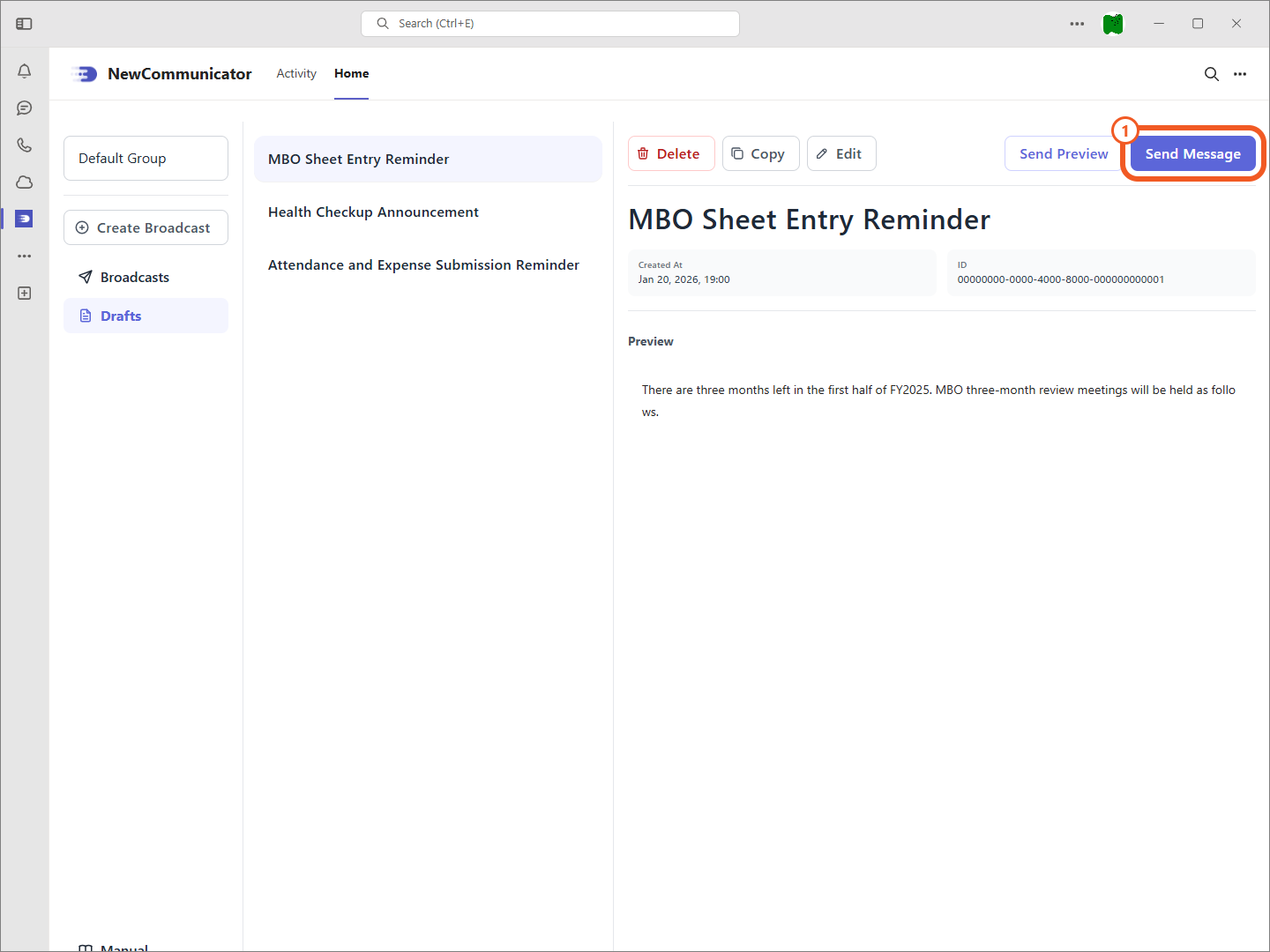
- Select a broadcast in the draft list and select Send a Broadcast.
- Select when to start the delivery.
- Select a delivery destination.
Choose one of the following delivery destinations:
- Team: select a team in Teams and send the broadcast to all members.
- Security group: select a security group configured in Microsoft 365 and send the broadcast to all members.
- CSV: upload a CSV containing the email addresses of the recipients.
When a security group has a hierarchy, selecting a parent group also sends the broadcast to members of child groups. CSV destinations support up to 1,000 recipients. When group settings restrict destinations, CSV is not displayed as a delivery destination.
Guest users cannot receive broadcasts sent to Teams teams or security groups.
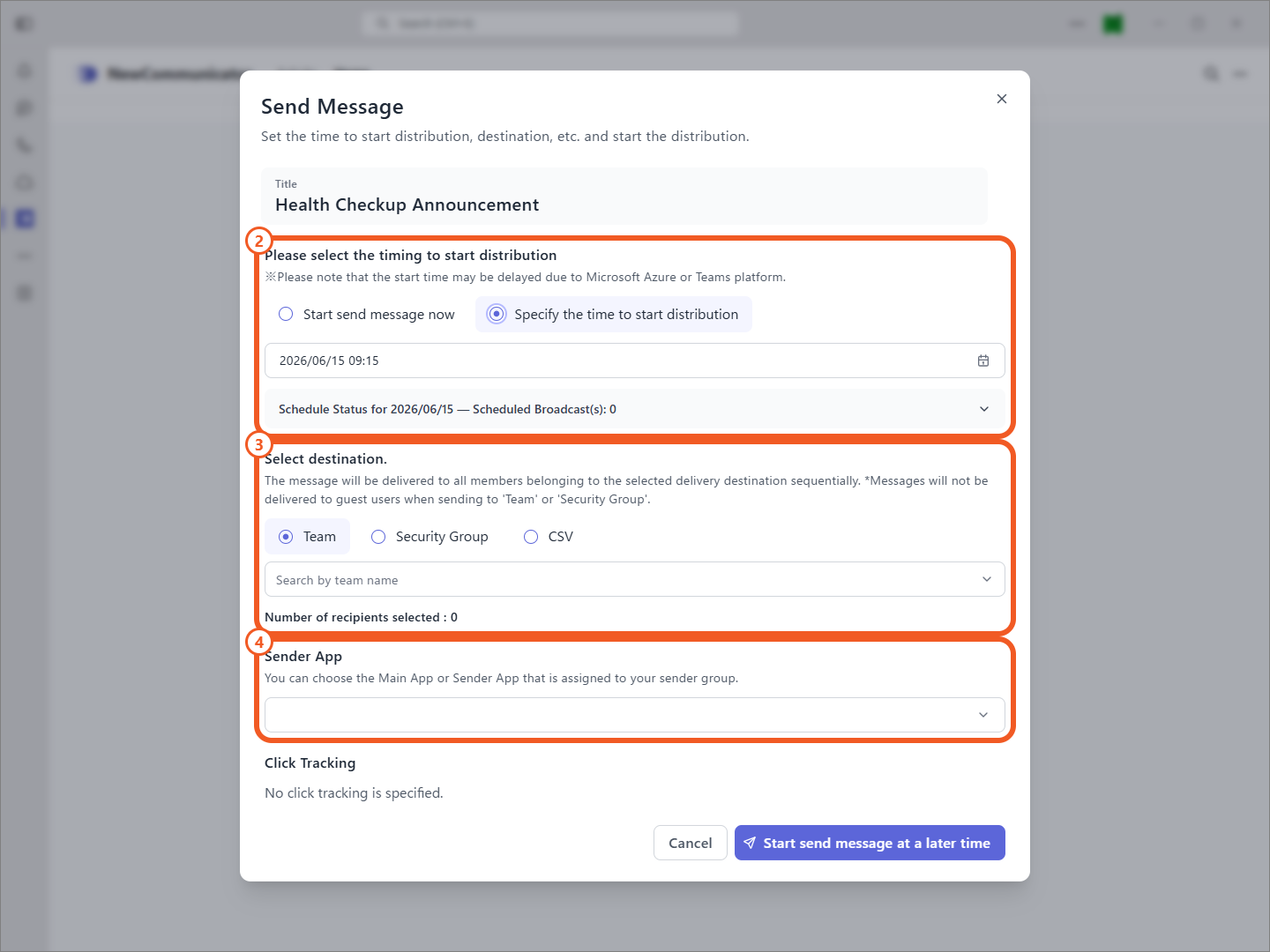
- On the Pro plan, sender apps configured for the sender's group are displayed in the send screen dropdown. Select the sender app to use.
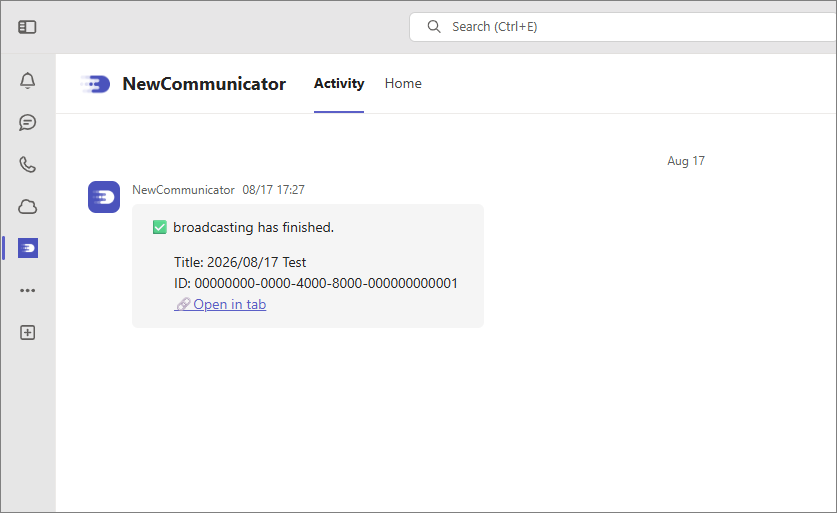
Delivery completion notification
The delivery completion notification is sent only to the sender who sent the broadcast. On the Pro plan, the notification is delivered to the NewCommunicator main app.
Receiver screen
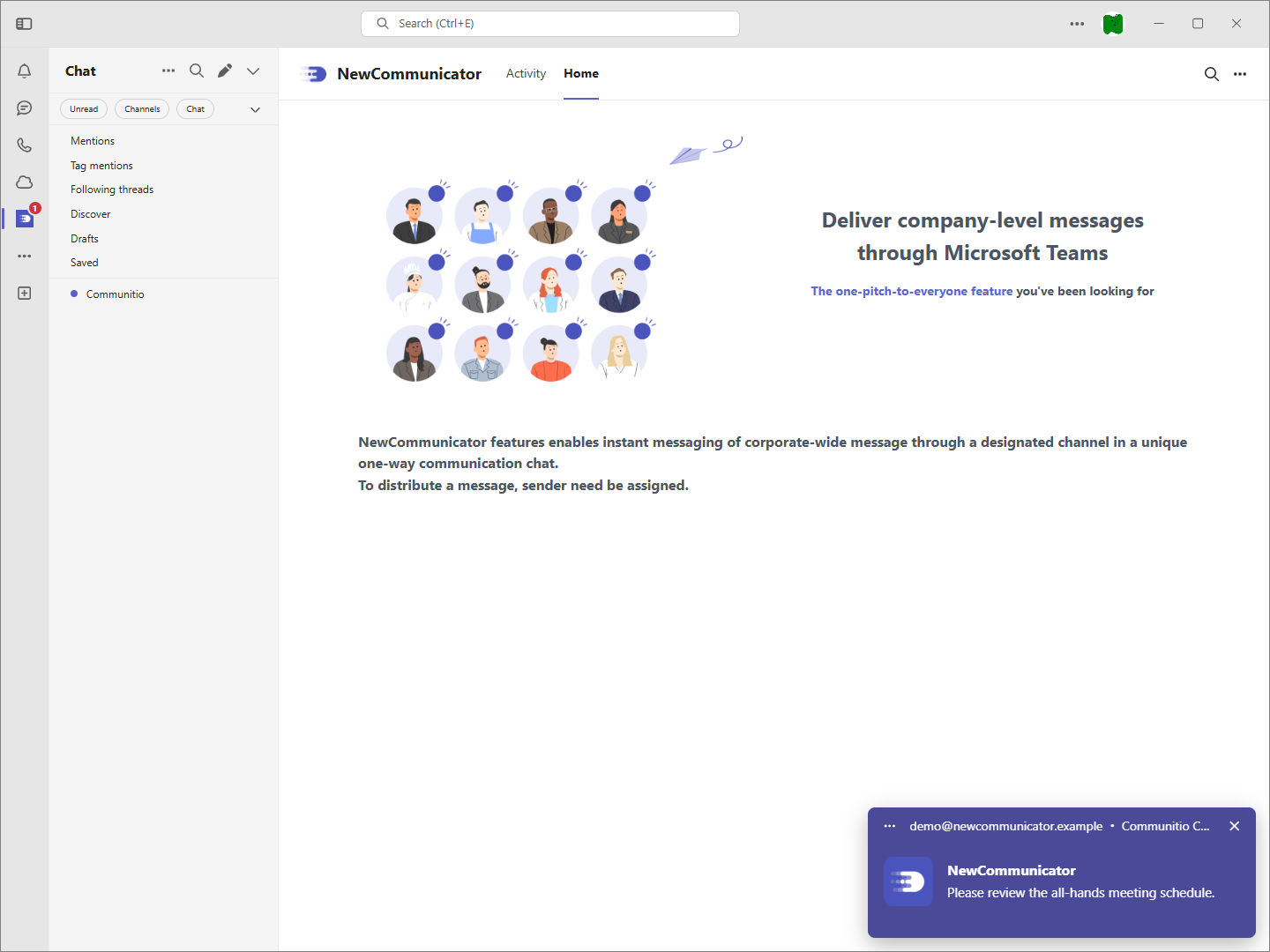
When a broadcast arrives, Teams shows a badge with a red number and a pop-up notification at the bottom right. Notifications depend on the receiver's personal Teams notification settings.
Receivers receive the broadcast in the NewCommunicator app and in a direct chat with themselves.