3.2 Personalized Inserts
What is variable delivery?
Variable delivery inserts recipient-specific information, such as a recipient's name, into a standard broadcast. You can use up to five variables, Variable 1 through Variable 5, in one broadcast.
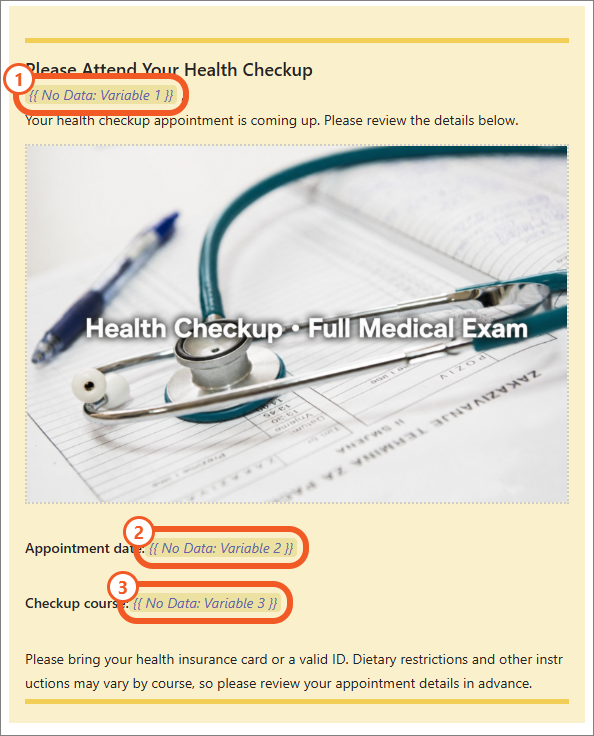
Create a broadcast with variables
Variable insertion is available only in the visual template.
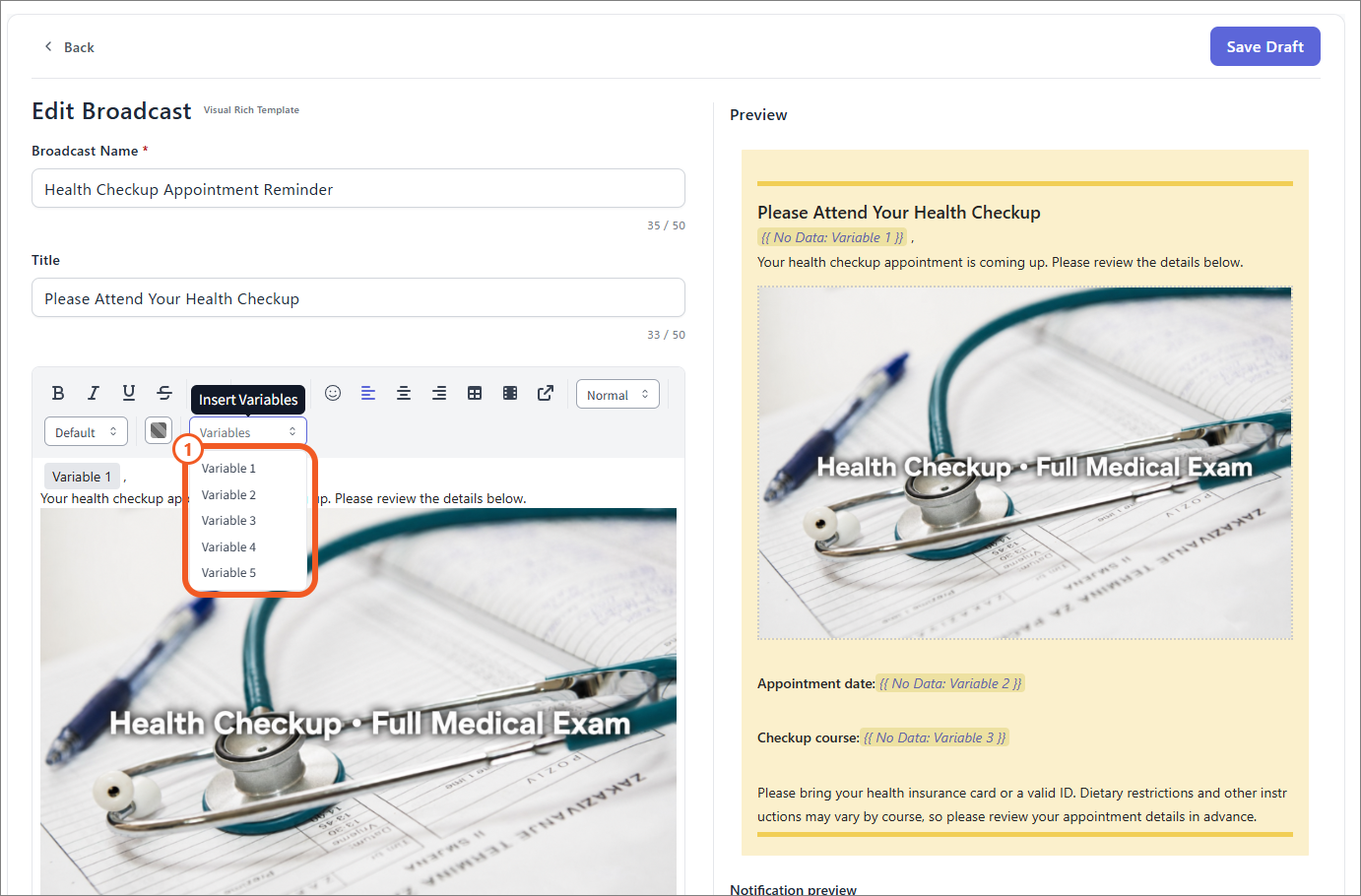
- Select the visual template from Create a Broadcast.
- Place the cursor where you want to insert a variable.
- Select Variable 1–5 from Insert variable.
- Confirm that the variable appears in the preview.
- Select Update draft to save the broadcast as a draft.
Insert a variable into a link URL
- Place the cursor where you want to insert a variable and select Link.
- Enter the display text and select Select variable.
- Select the relevant variable and select Apply.
- Confirm that the result appears in the preview.
For a link, the display text is shown in the preview.
Send a test broadcast
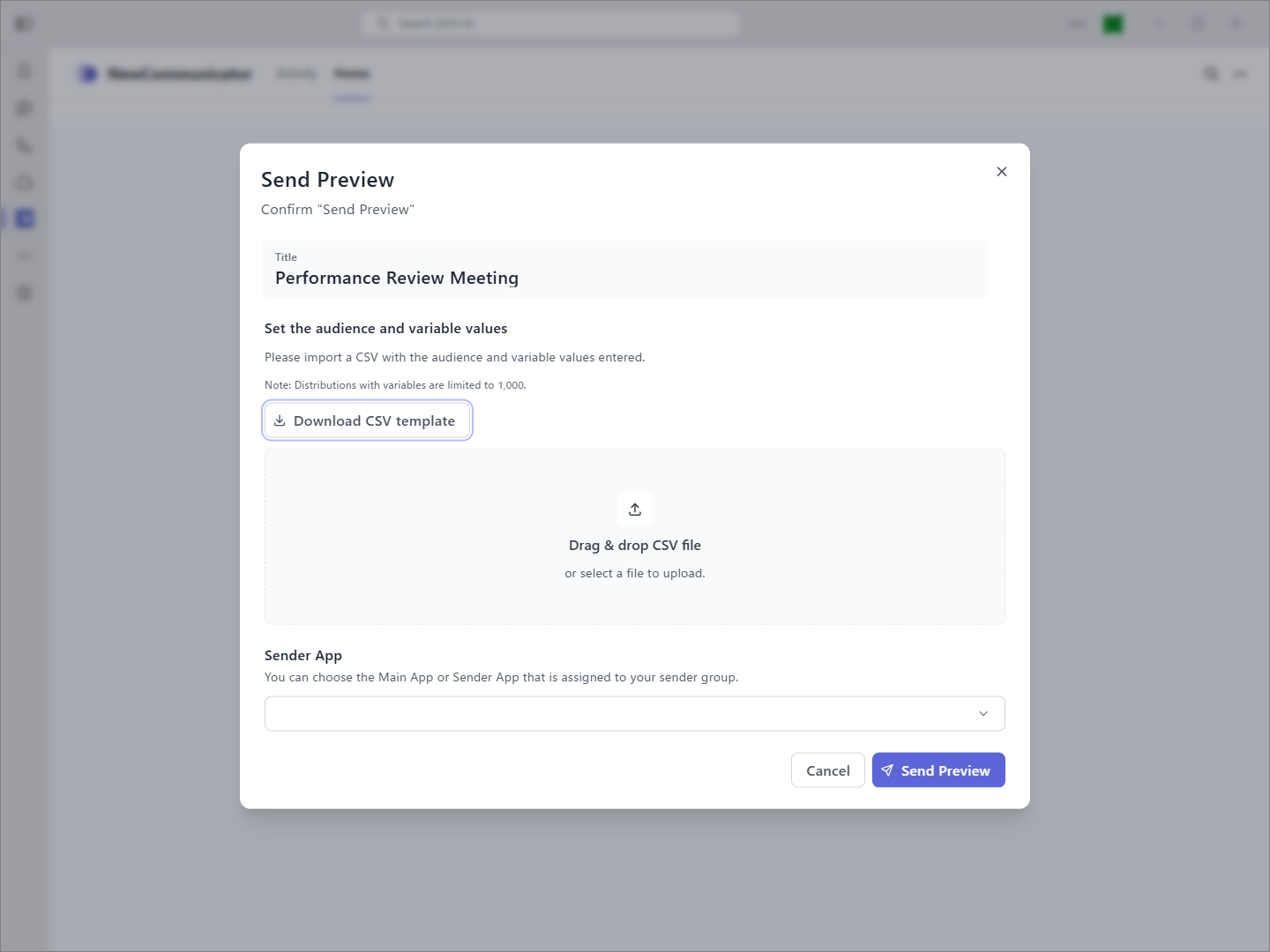
- Select Send Preview for the broadcast on the draft page.
- Open Set delivery destinations and variable values.
- Select Download CSV file template to download the CSV for variable values.
- Enter the Variable 1–5 values used in the broadcast next to the
emailcolumn and save the CSV. The CSV template contains theemailandvariable1throughvariable5columns. - Drag and drop the CSV or select it using the file picker.
- Review the settings and select Send Preview.
After the upload succeeds, the CSV information appears in the delivery destination and variable value settings. Starter and Basic plans can send directly; on the Pro plan, select a sender app.
Send a broadcast to production
For production delivery, upload the CSV with variable values using the same steps as for test delivery. The variable values in the uploaded CSV are not shown on the production delivery confirmation screen.