2 Assignee Settings
| Role | Responsibilities |
|---|---|
| Microsoft 365 Global Administrator | • Assigns the NewCommunicator App Administrator |
| NewCommunicator App Administrator | • Assigns Sender(s); • Manages the Destination Display Restriction List; • Manages Sender Group Registration (not available in the Starter Plan). NOTE: Multiple App Administrators can be assigned. The App Administrator can assign themselves as a Sender. |
| Sender | • Creates and sends messages using NewCommunicator. NOTE: The number of Senders that can be registered depends on your subscription plan. |
Appoint app administrators
- Sign in to the Microsoft Azure portal as a global administrator.
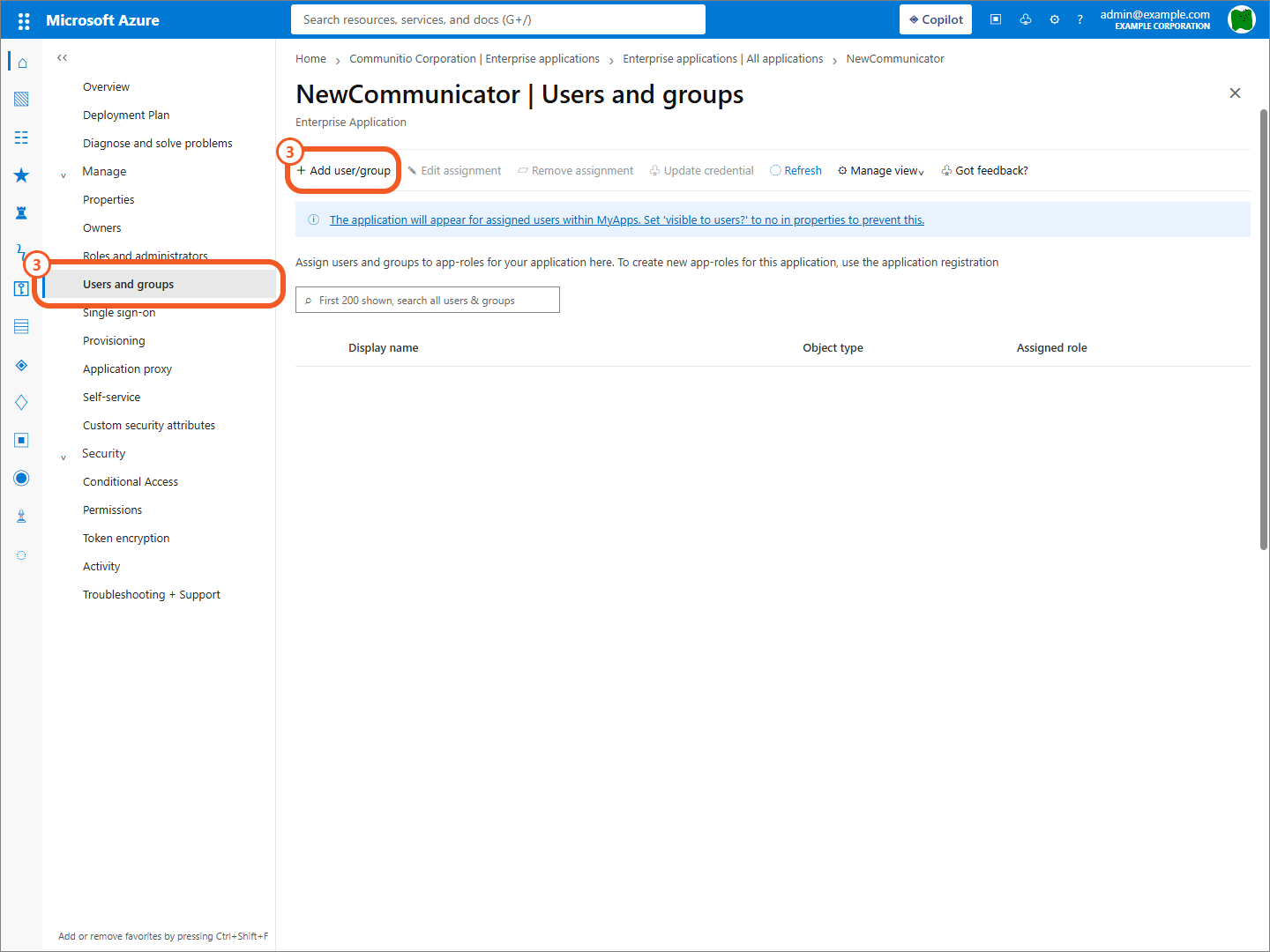
- Open NewCommunicator from Enterprise applications.
- Open Users and groups, then select Add user/group.
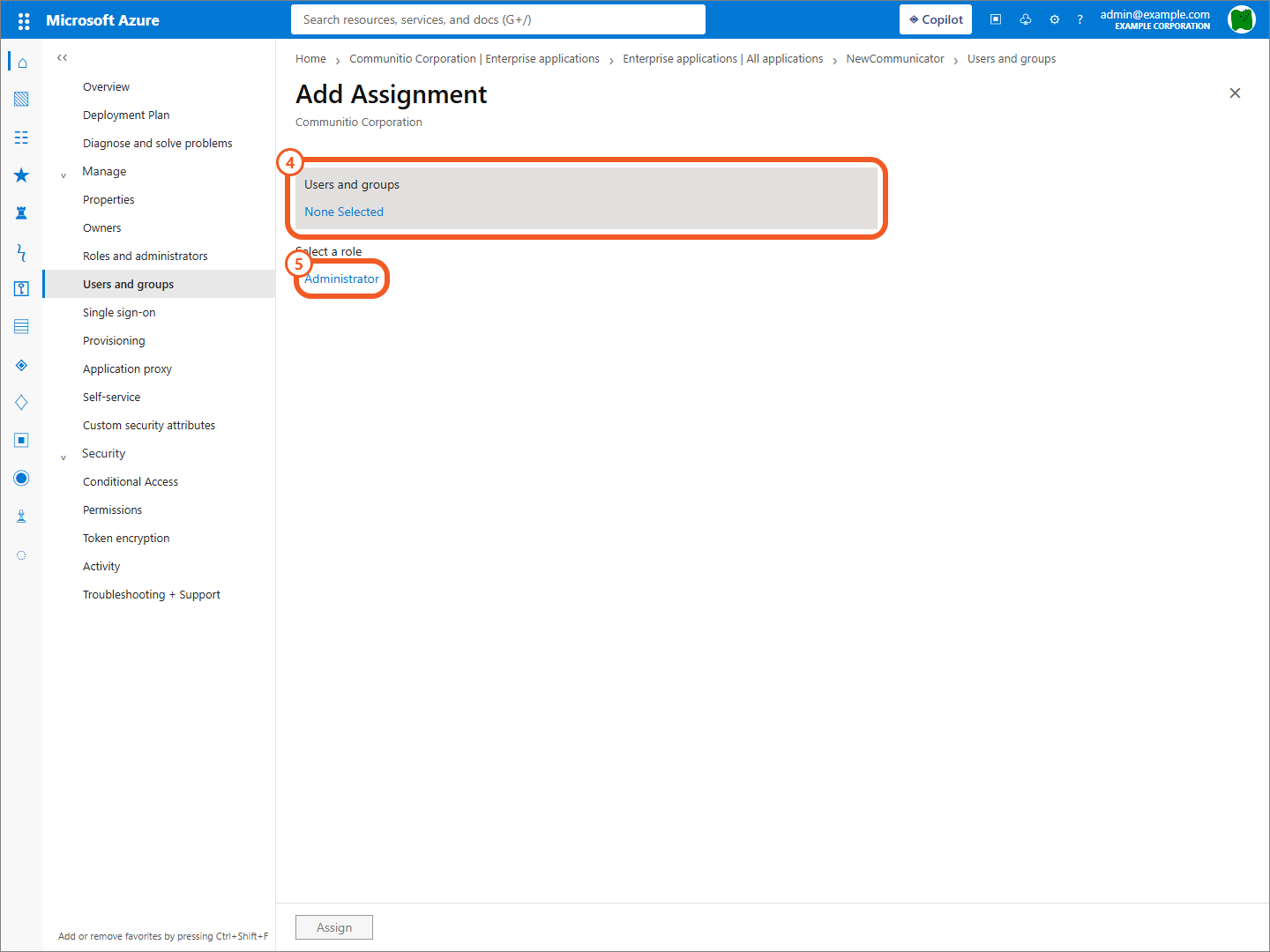
- Select the user to make an app administrator, then select Select.
- Select Assign and assign the
Administratorrole.
caution
NewCommunicator provides only the Administrator app role.
Appoint senders
- Open the sender settings page.
- Sign in as an app administrator.
- Assign the users to register as senders.
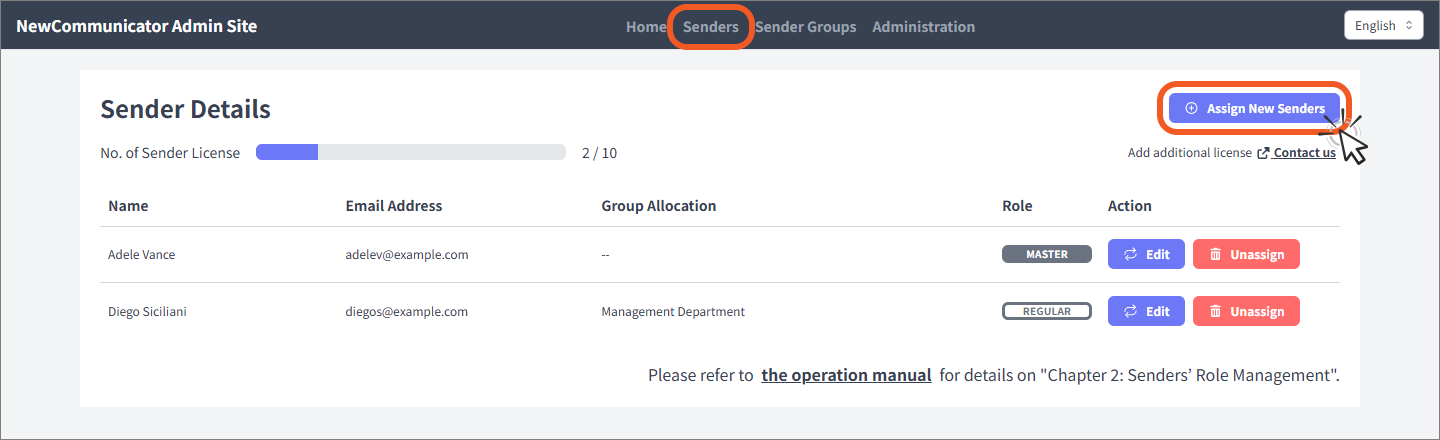
If the settings page does not appear after you sign in as an app administrator, log out once from the upper-right corner and sign in again.