5 Sender Group Management
Grouping senders lets you share drafts and delivery results by group and restrict recipients and sender apps for each group. App administrators and master senders can manage sender groups.
Sender group rules
- You can create up to 100 groups.
- You can specify up to 20 recipient groups that each sender group is allowed to send messages to.
- A sender can belong to only one sender group.
- Each sender group can contain up to 10 senders.
- When sender groups are configured, drafts and delivery results are shared only among senders in the same group.
- Master senders can view and edit drafts and delivery results for all groups.
If no recipients are configured, members can select recipients from Teams teams, security groups, or CSV files in the tenant.
Create a sender group
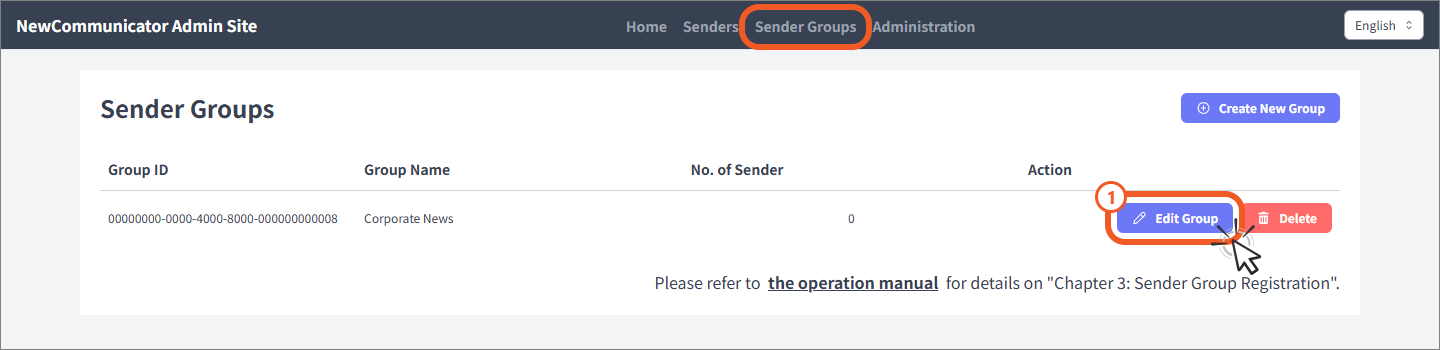
- Open Sender Groups as an app administrator or master sender.
- Select Create New Group.
- Enter a group name and create the group. Group names can contain up to 30 characters.
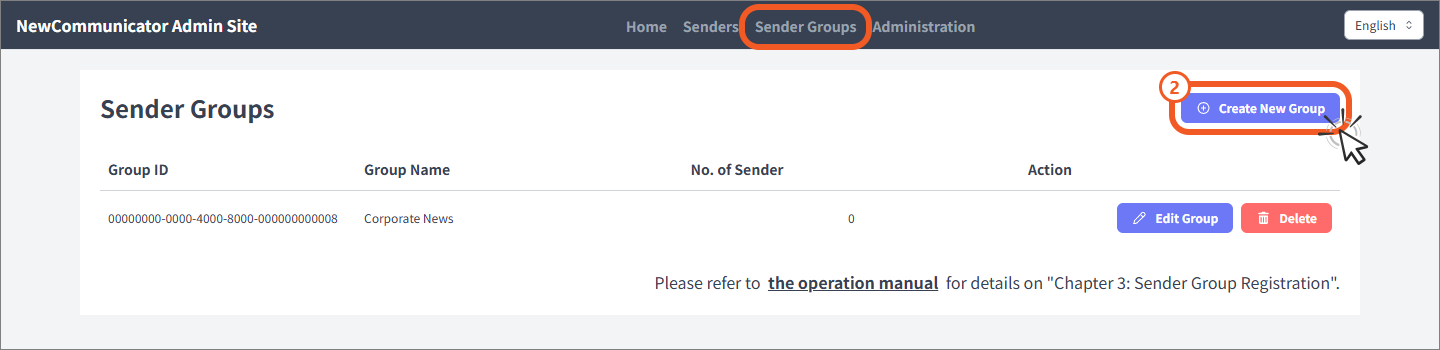
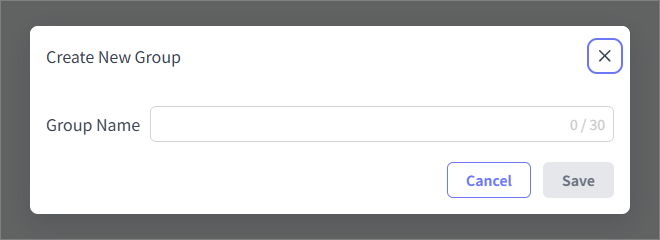
The created group appears in the list. Continue as follows.
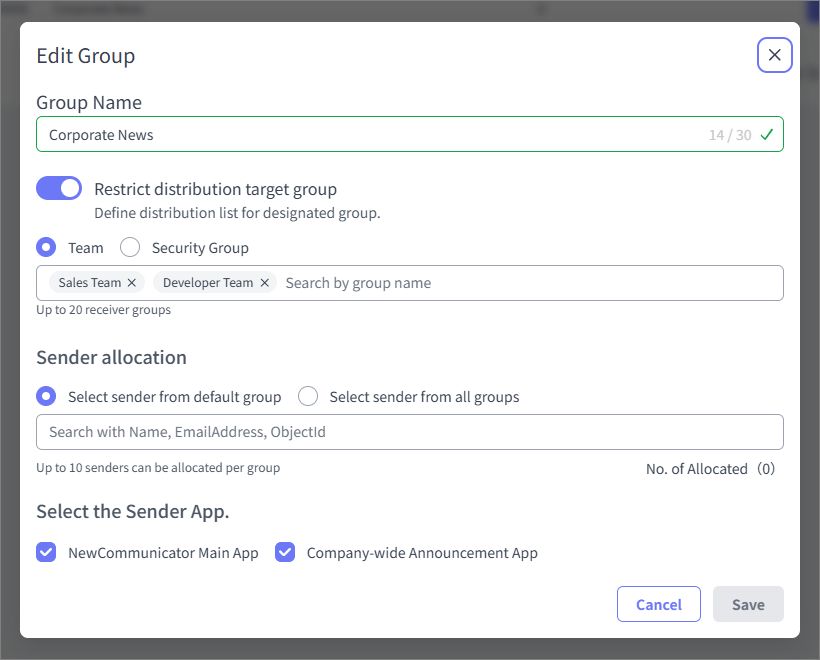
- Select Edit Group to configure recipients and senders.
Configure recipients and senders
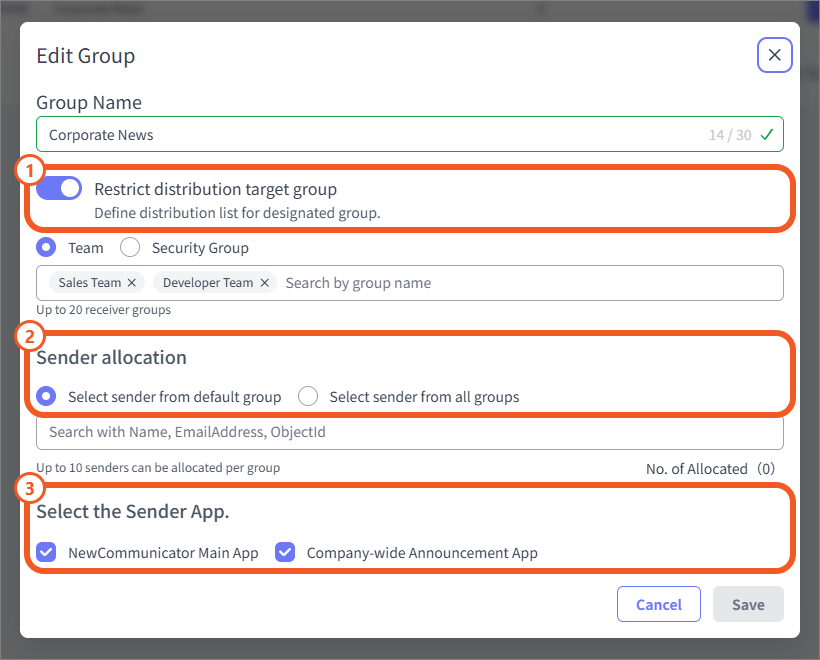
1. Restrict distribution target group
Turn on Restrict distribution target group and select a team or security group. Members of the sender group can send broadcasts only to the recipients configured here.
2. Select senders
Select the senders to include from the default group or all groups. If you select a sender who already belongs to another group, the sender is removed from the original group.
3. Select the Sender App.
On the Pro plan, you can select multiple sender apps to send broadcasts. Sender apps that are not selected do not appear on the group's send screen.