7 Setting up Additional Sender Apps
Sender Apps are used to separate broadcasts into different Teams chats.
Broadcasts are created and delivered through the NewCommunicator Main App.
On the Pro plan, you can add sender apps and use them to send broadcasts. Configure them in the following order.
- An app administrator creates and downloads a sender app ZIP file from the admin site.
- A Microsoft 365 global administrator uploads the ZIP file to the Teams admin center and grants consent.
- An app administrator registers the sender app on the admin site.
- An app administrator or master sender assigns the sender app to a sender group.
Create a sender app ZIP file
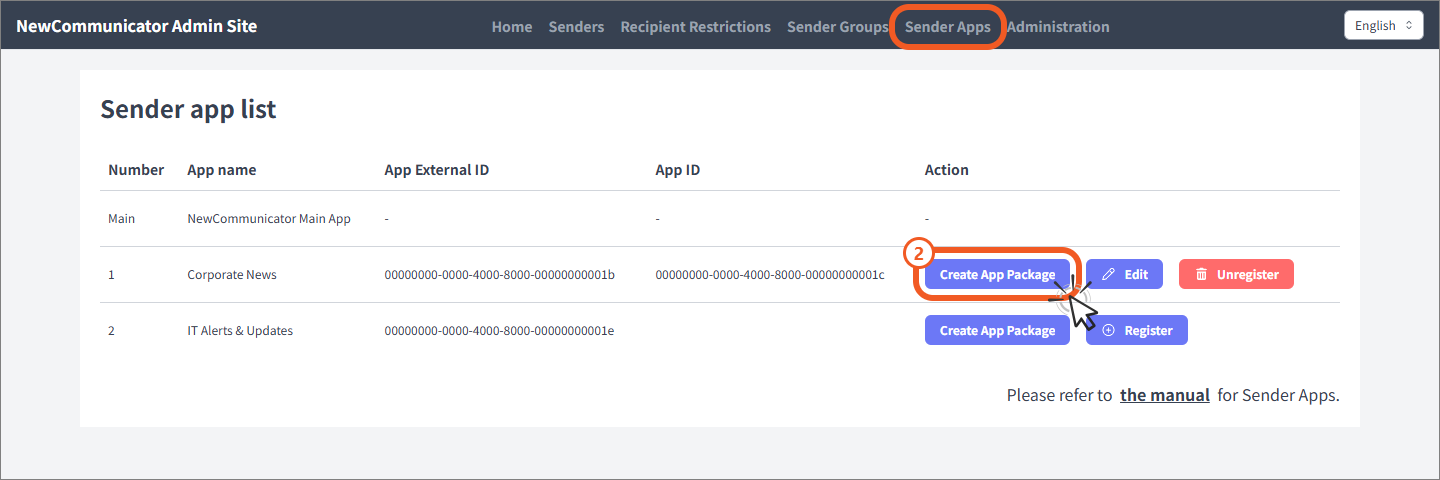
- Open Sender Apps as an app administrator.
- Select Create App Package.
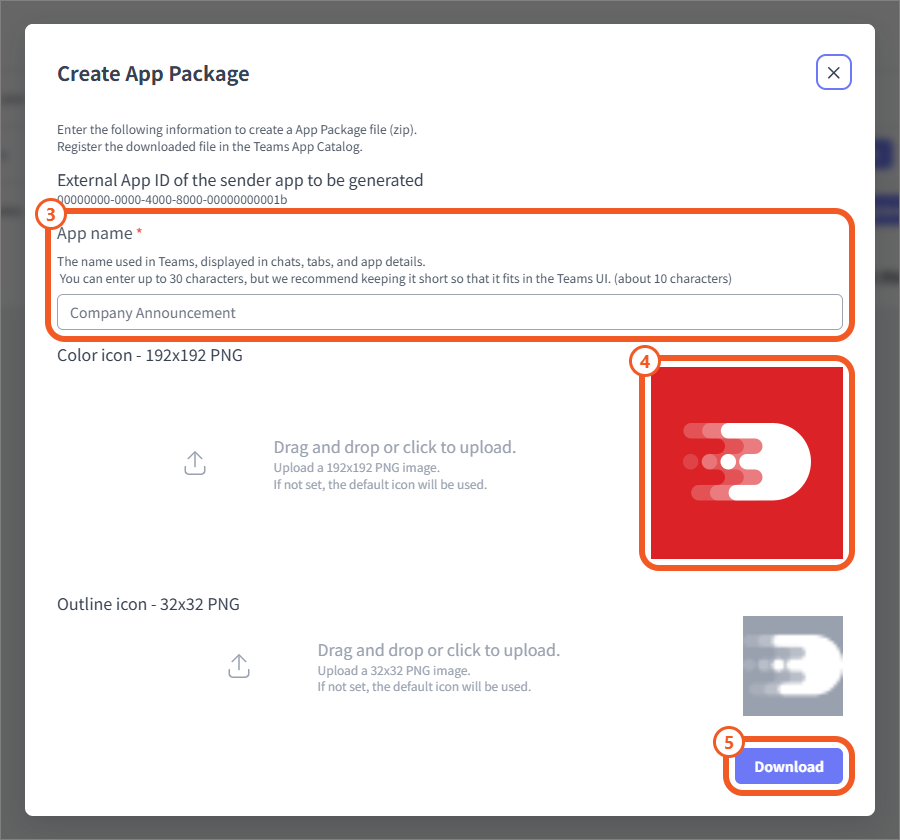
- Enter the app name to display in Teams.
- If needed, upload a 192 × 192 pixel color icon and a 32 × 32 pixel outline icon.
- Select Download to save the ZIP file.
App names can contain up to 30 characters. If you do not set icons, the default icons are used.
Add the app to the Teams admin center
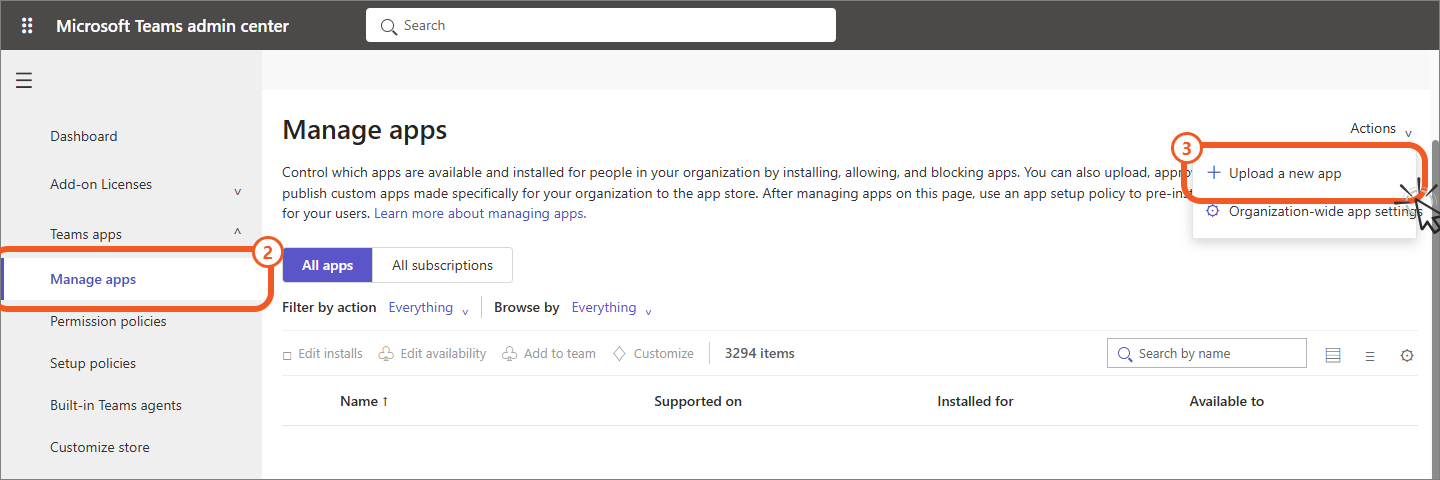
- Sign in to the Microsoft Teams admin center as a Microsoft 365 global administrator.
- Open Teams apps → Manage apps.
- From Actions, select Upload a new app.
- Upload the ZIP file you created.
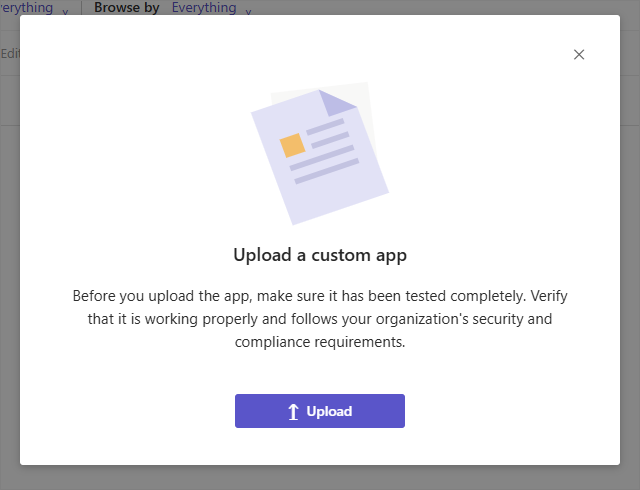
When the Upload a custom app screen appears, select Upload and choose the ZIP file.
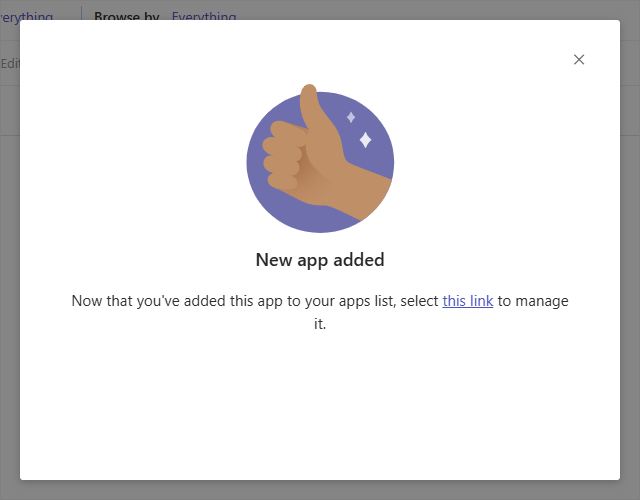
When the upload is complete, the screen confirming that the app was added to the app list appears.
Search for and open the uploaded app. From Permissions, select Grant admin consent. Accept the requested permissions with a global administrator account and confirm that the yellow banner turns green.
Check the app IDs
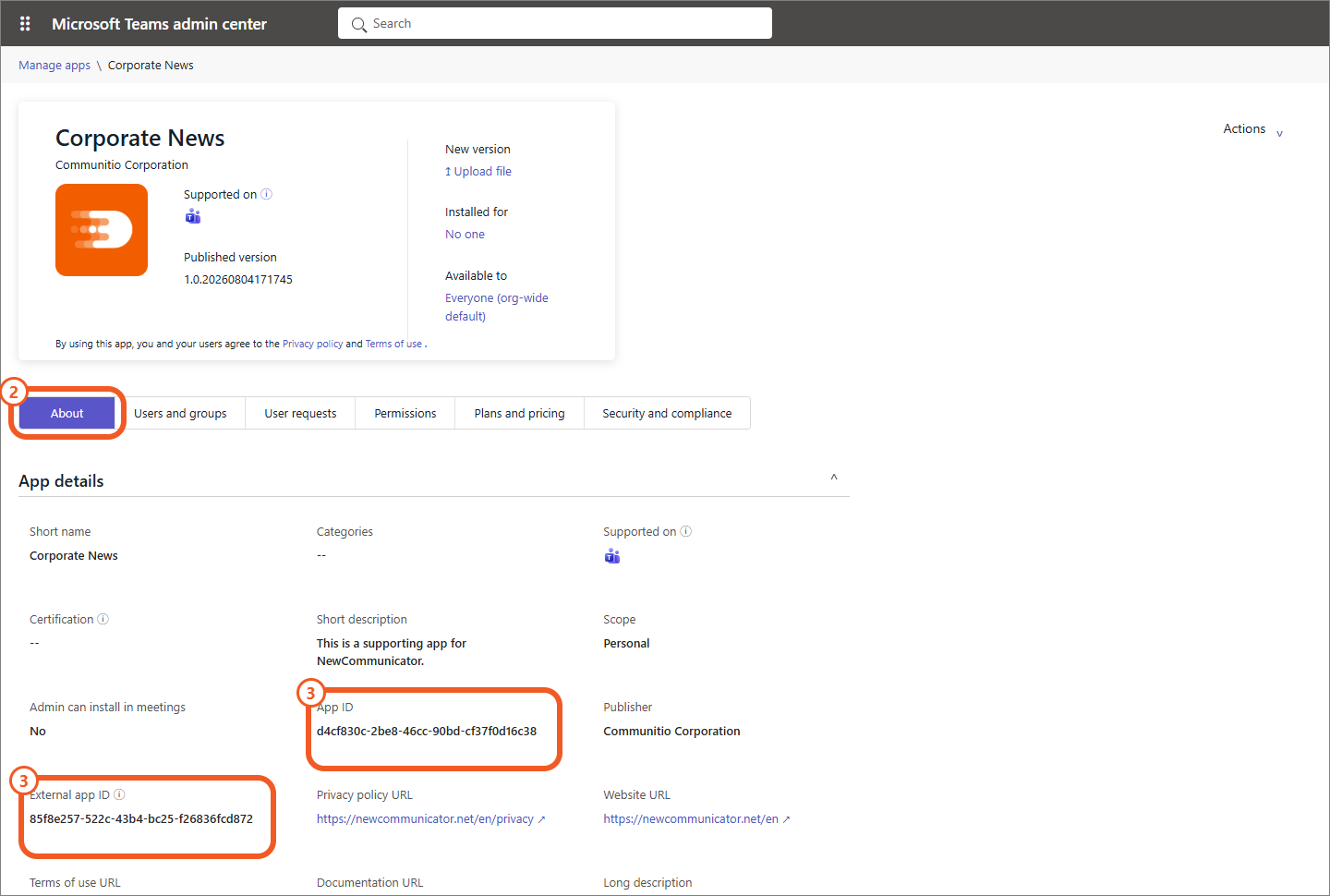
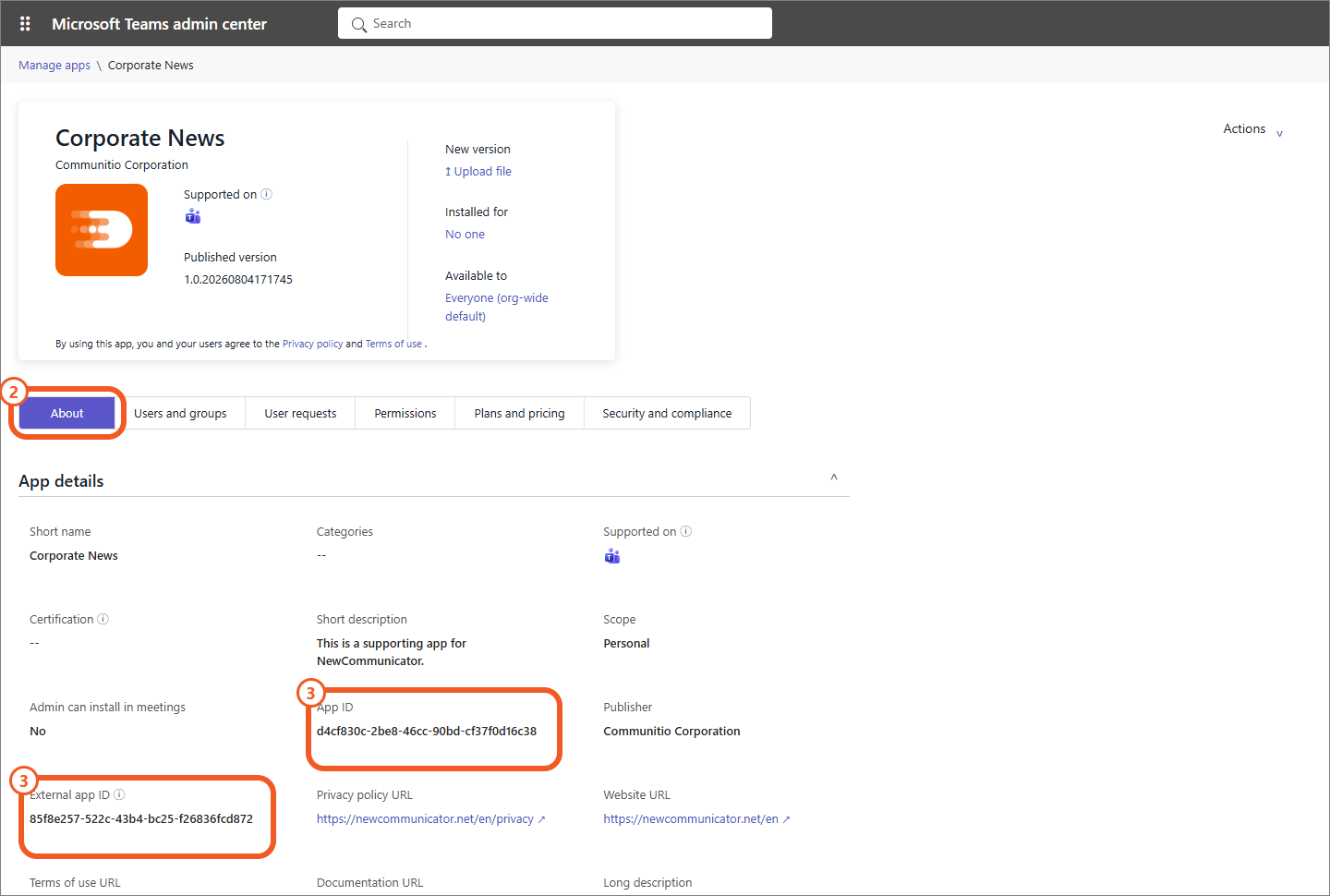
- In the Teams admin center, open the registered sender app.
- Open About.
- Copy the displayed external app ID and app ID.
Register the sender app on the admin site
Even after you upload the sender app and grant admin consent in the Microsoft Teams admin center, the changes may take time to propagate, so you may not be able to register the app on the NewCommunicator admin site immediately.
If you cannot register the app immediately, allow up to 24 hours for propagation, then try again.
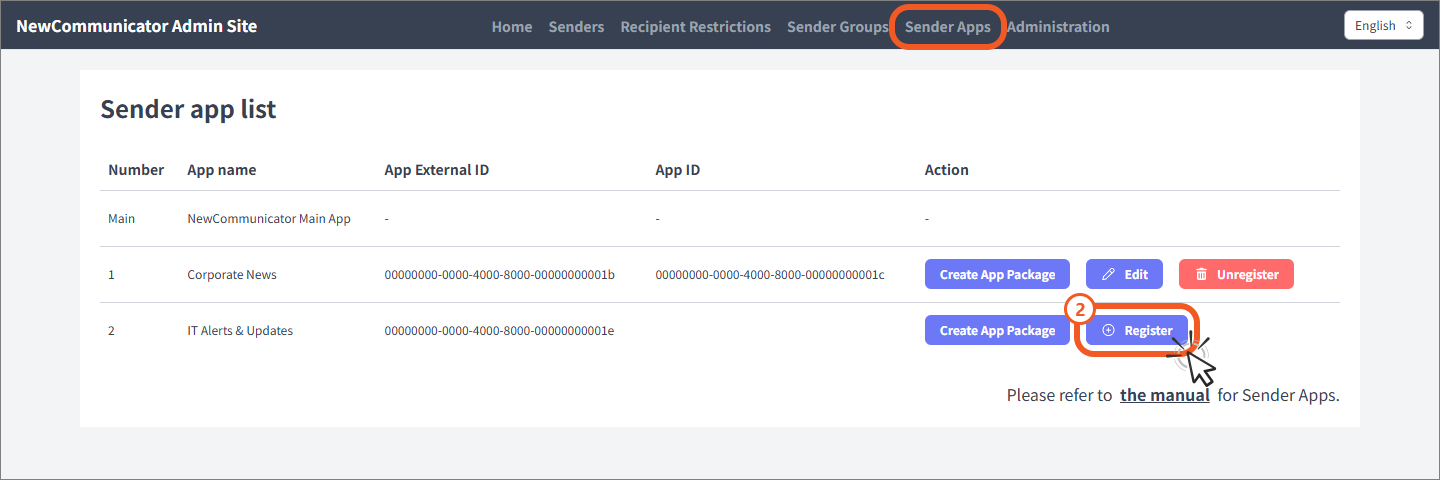
- Open Sender Apps as an app administrator.
- Select Register for the target app in the list of unregistered sender apps.
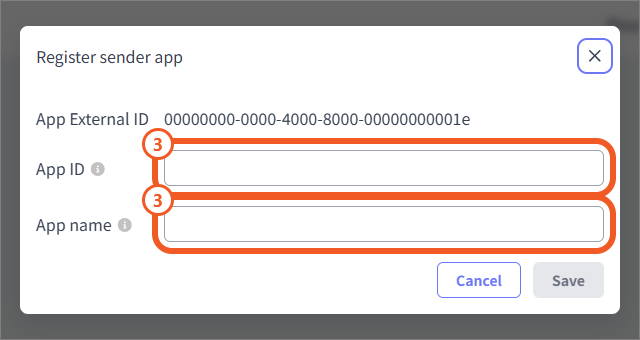
- Enter the app ID copied in the Teams admin center and the app name set when the ZIP file was created.
- Select Register.
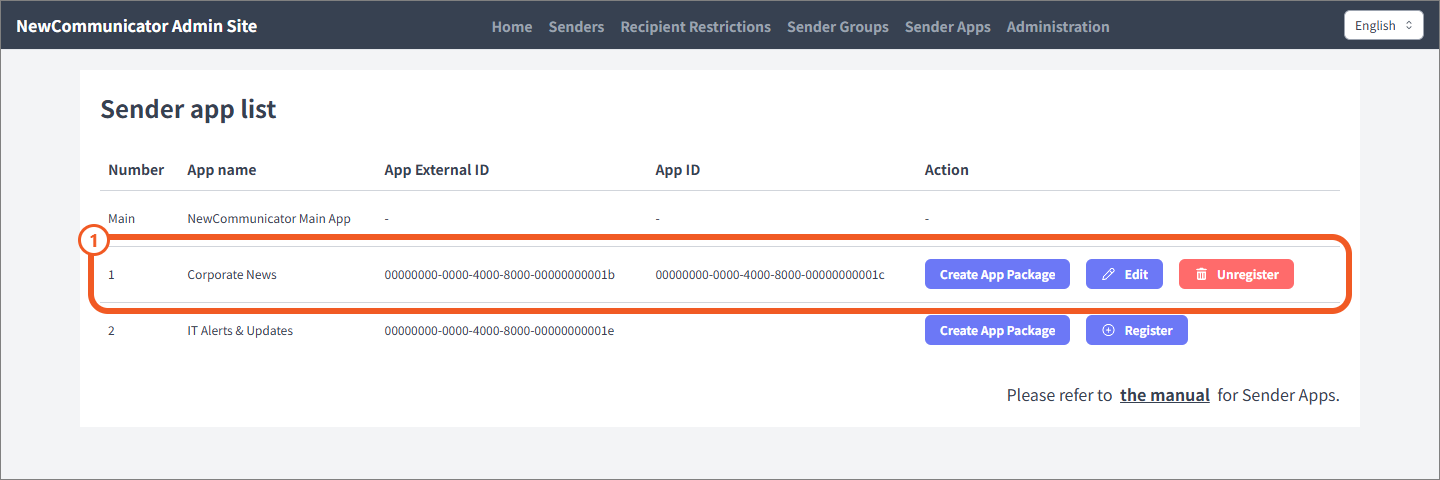
- Confirm registered sender apps in the registered apps list.
Assign a sender app to a sender group
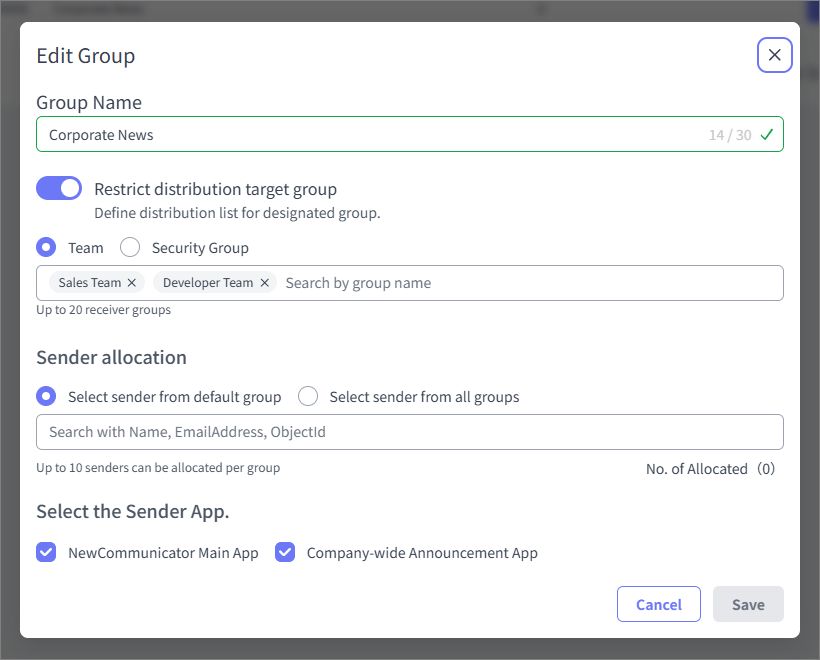
- Open Sender Groups as an app administrator or master sender.
- Select Edit Group for the target group.
- Under Select the Sender App., select the sender apps this group will use.
- Select Save.
The group can send broadcasts using only the selected sender apps. You can select multiple sender apps.